ConsultCastAI
Practice minutes on a paid plan
A paid plan includes practice minutes every calendar month. Pro includes 120 minutes a month. Team includes 1,000 minutes a month, shared by the whole team. This page shows where the count appears, what happens when the minutes run out, and how to add more.
-
Find the counter
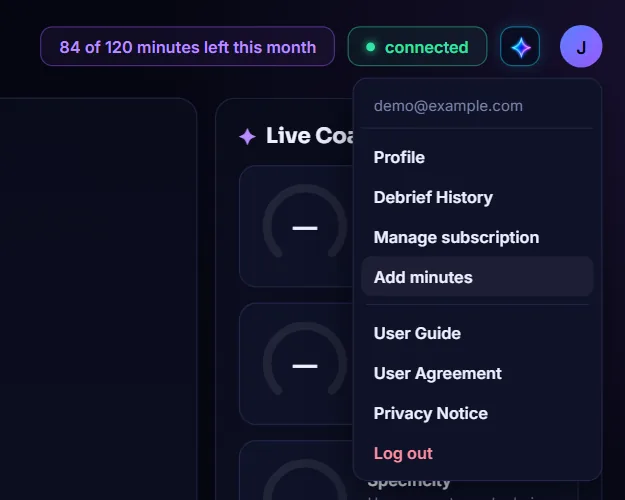
The header shows what is left of this month's minutes, for example "84 of 120 minutes left this month". On a Team plan it says "team minutes" and counts the whole team's use. It is always in whole minutes, rounded down.

-
Heed the one minute warning
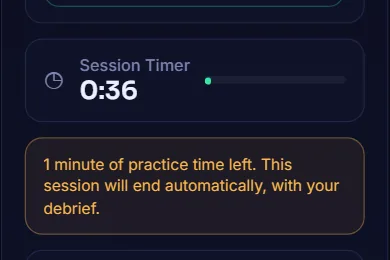
While a session runs, the counter counts down, and the clock stops while you pause. A session can use all the minutes you have left. One minute before they run out, a notice appears under the Session Timer.
-
Let the session end itself
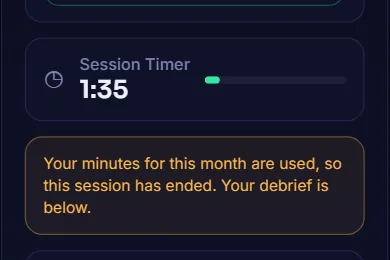
When the minutes run out, the session ends on its own and your debrief is written as usual. Nothing you said is lost.
-
See the Minutes used panel
With less than one minute left, a Minutes used panel appears and Start practice session is switched off. The panel says when your minutes reset, which is the first day of the next month.

-
Add 100 minutes for $40
Click Add 100 minutes for $40 on the panel. You can also do it before you run out: open your account menu and choose Add minutes. A secure Stripe payment page opens. It is a one-time payment, not a subscription.
-
Come back with your extra minutes
After you pay, you return to ConsultCastAI and a message confirms the payment. The counter now shows your extra minutes, for example "+ 100 extra". Extra minutes are used only after the month's minutes run out, and they do not expire at the end of the month.

-
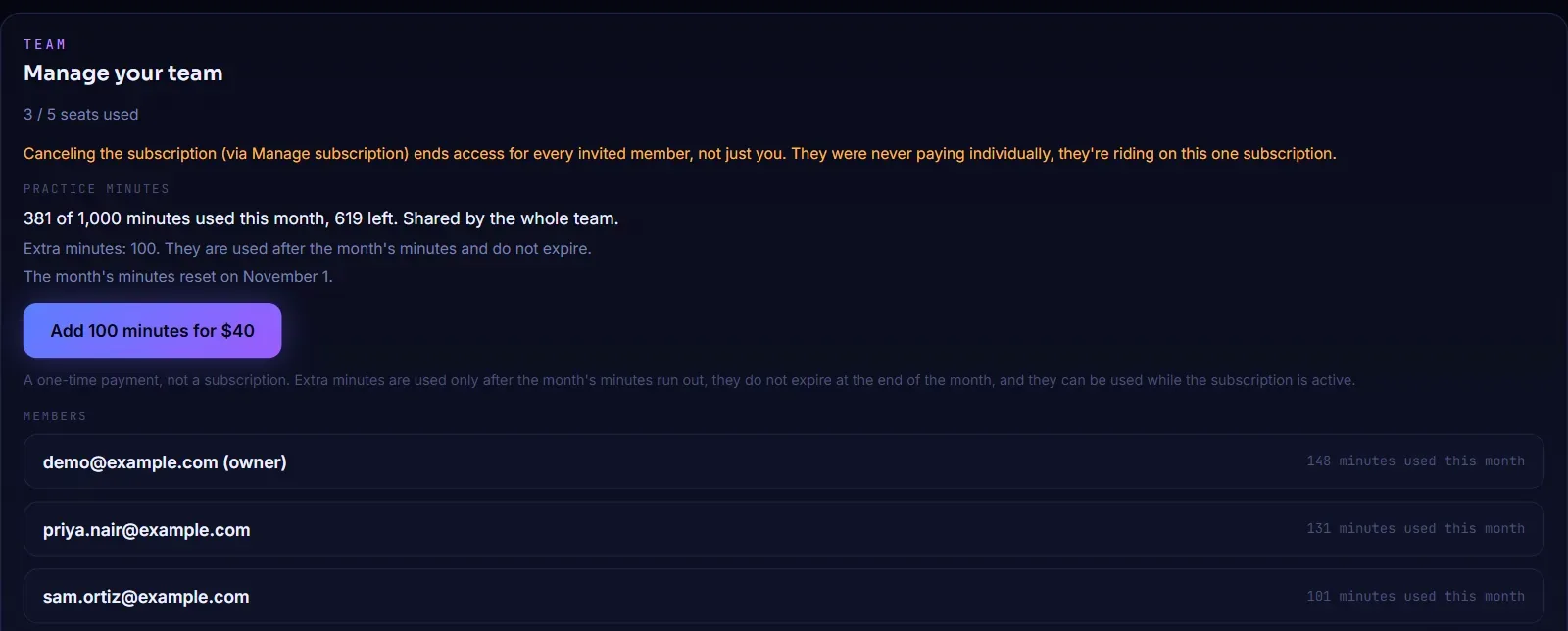
Check your team's minutes
On a Team plan, open your account menu and choose Team. The screen shows the minutes the team has used and has left out of 1,000, any extra minutes, and the date the month's minutes reset. The team owner also sees how many minutes each member has used and the Add 100 minutes for $40 button.