ClientBriefAI
Set up a client
Do this once at the start of every new client. The same details appear at the top of AI Readiness Assessment, Implementation Scope and AI Opportunity Assessment, and they feed every report.
-
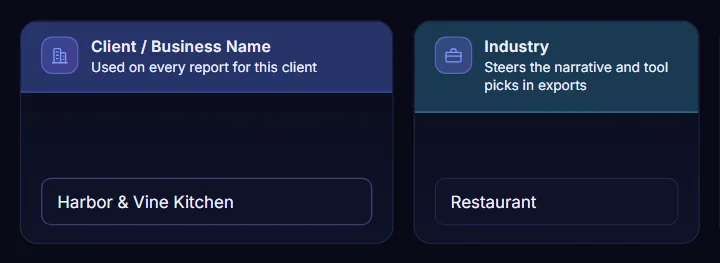
Enter the client name and industry
Type the business name under Client / Business Name. It is used on every report for this client. Then pick the closest match under Industry, which steers the wording and the tool suggestions.
-
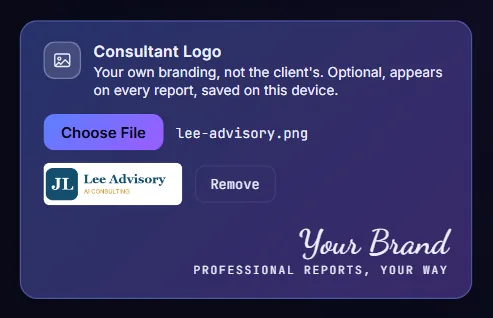
Add your logo
Under Consultant Logo press Choose File and pick your own logo, not the client's. A small preview appears, and Remove takes it off again. Your logo appears on every report and the report colors follow it.
-
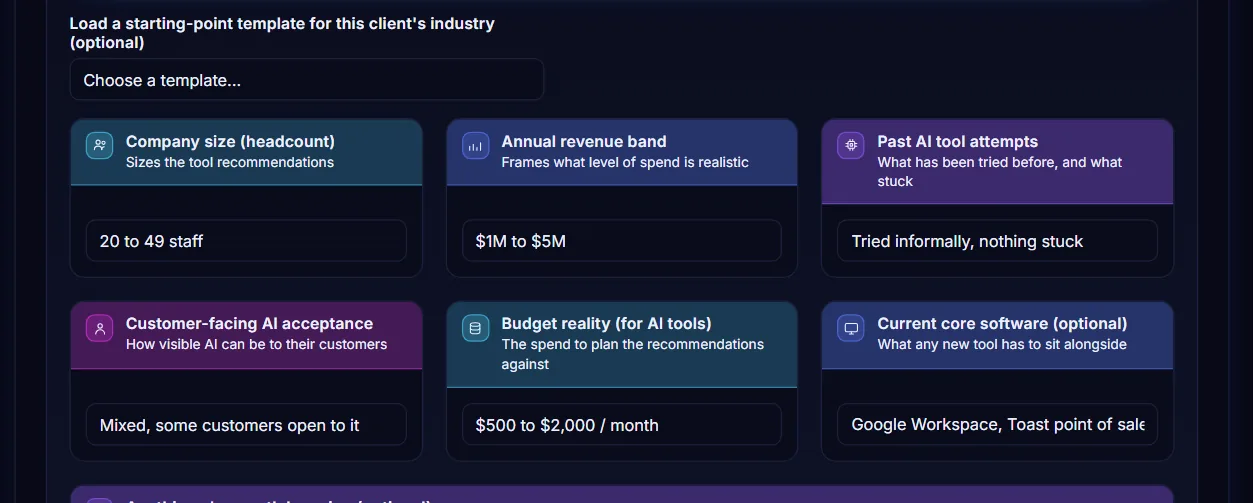
Fill in the Client Context
Choose the company size, annual revenue band, past AI tool attempts, customer-facing AI acceptance and budget, and type the software the client already uses. These are background only. They help size the recommendations and do not change any score.
-
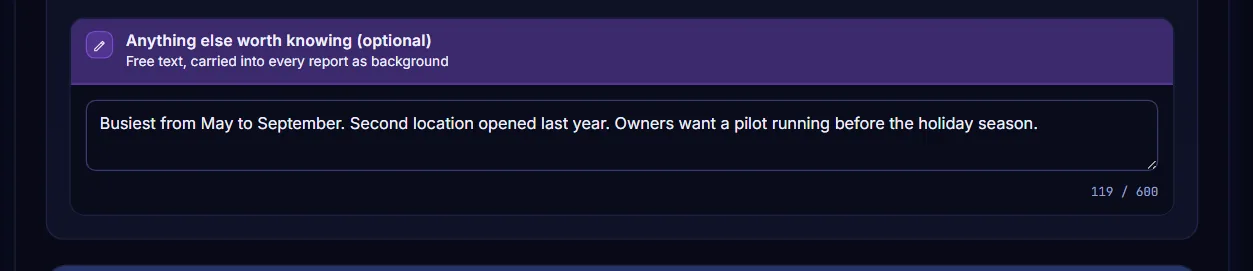
Add anything else worth knowing
Use the free text box for things the lists miss, such as busy seasons or a deadline. You have up to 600 characters and the text is carried into every report as background.