ClientBriefAI
Open ClientBriefAI and find your way around
ClientBriefAI takes one client from a readiness check to a scoped plan, an opportunity assessment and tracked results. Start here to see how to open it and where everything is.
-
Open ClientBriefAI from the Command Center
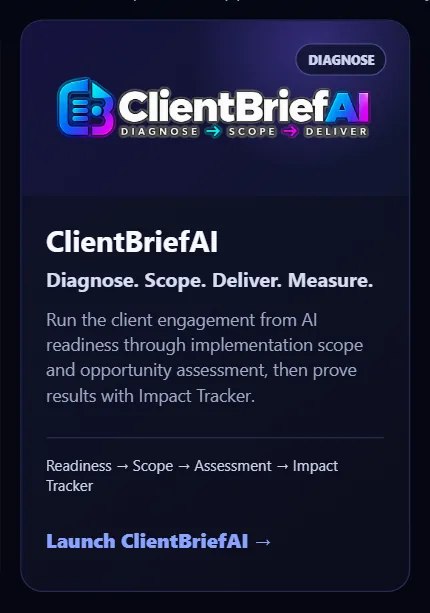
Sign in at the Command Center, find the ClientBriefAI card and press Launch ClientBriefAI. It opens in a new tab and you are already signed in. There is no second sign-in and no separate ClientBriefAI password.
-
Start on the AI Readiness Assessment
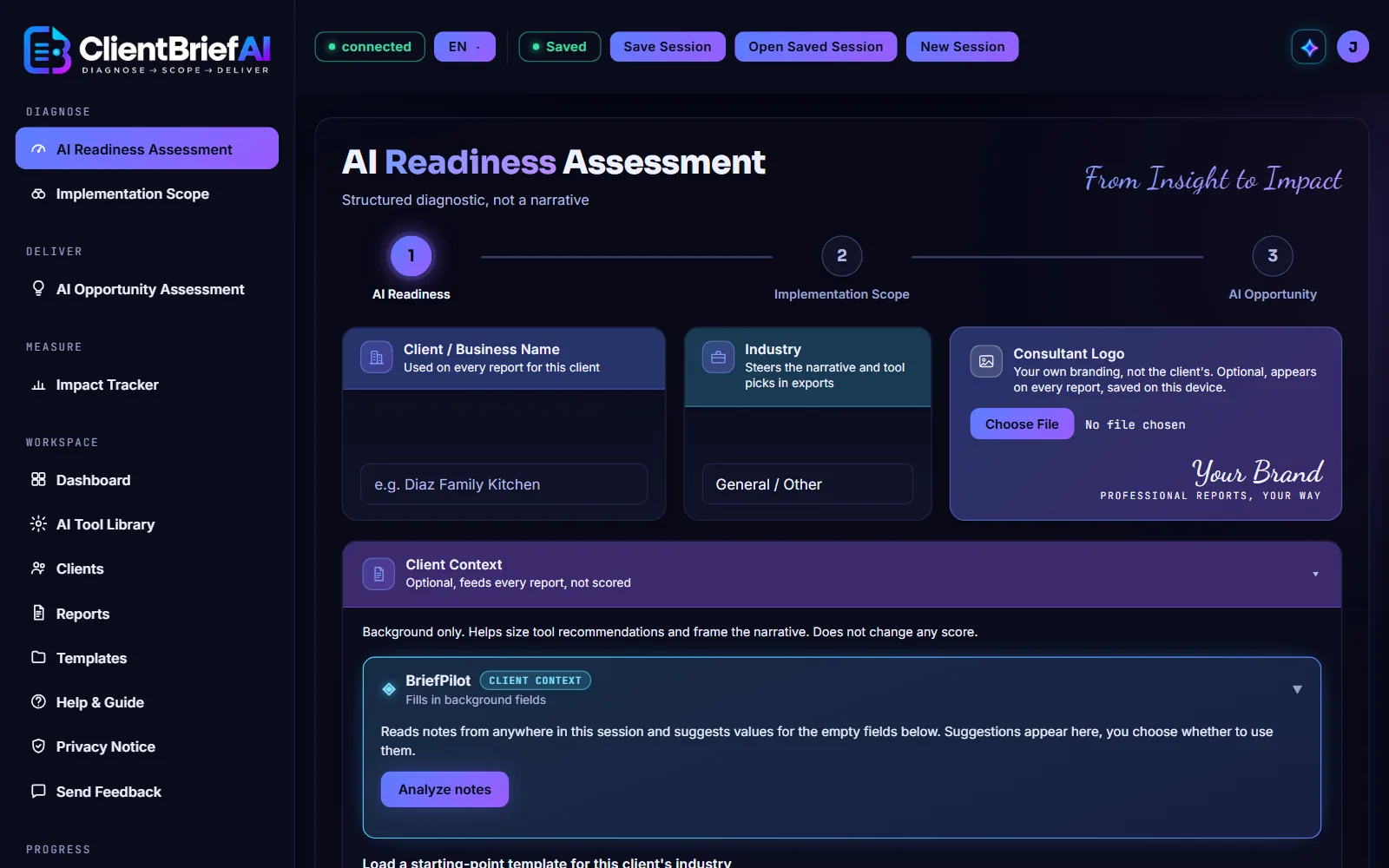
The app opens on the AI Readiness Assessment. The numbered line under the title shows the three working stages for a client: AI Readiness, Implementation Scope and AI Opportunity.
-
Use the sidebar to move between sections
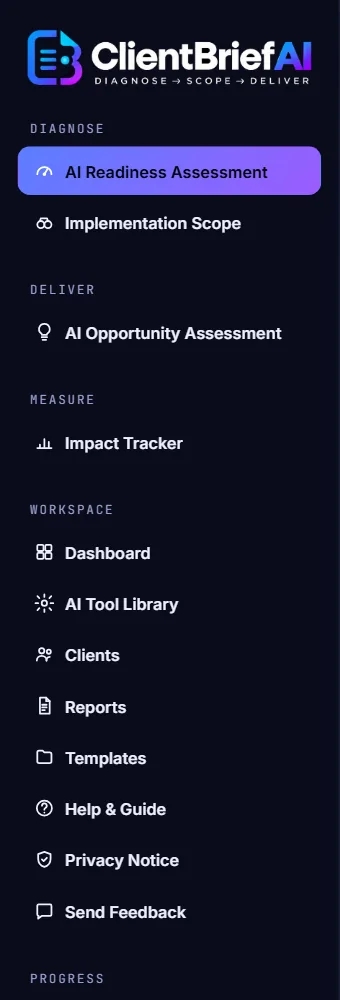
DIAGNOSE holds AI Readiness Assessment and Implementation Scope. DELIVER holds AI Opportunity Assessment. MEASURE holds Impact Tracker. WORKSPACE holds Dashboard, AI Tool Library, Clients, Reports, Templates, Help & Guide, Privacy Notice and Send Feedback.
-
Use the header to save and open client work
The header shows whether your work is Saved or Unsaved. Next to it are Save Session, Open Saved Session and New Session. A session is everything you have done for one client.

-
Choose your language
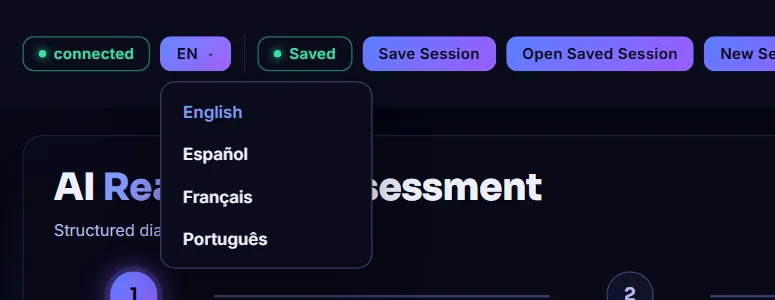
Press the language button (EN) to switch the app between English, Español, Français and Português.
-
Jump to the other apps
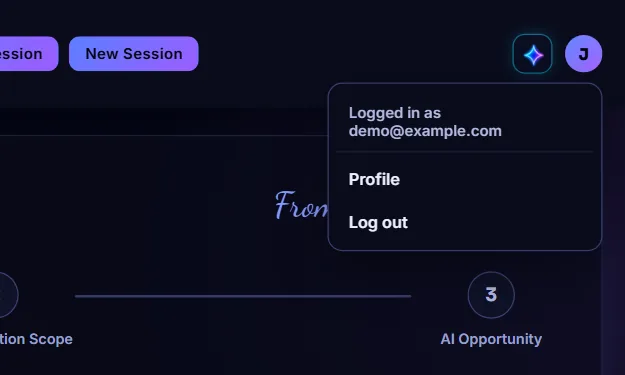
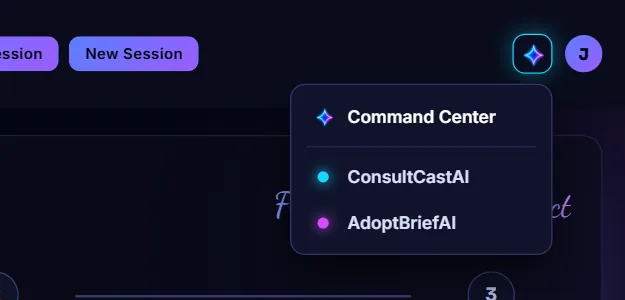
Press the sparkle button at the top right to open the app switcher. Choose Command Center, ConsultCastAI or AdoptBriefAI. Each one opens in a new tab, so the client you are working on stays open here.
-
Open the account menu
Press the round button with your initial to see which account you are signed in with. Choose Profile for your account details, or Log out when you are finished.