ClientBriefAI
Save your work and open it again
ClientBriefAI does not keep your client's work on our servers. Everything for one client is saved in a session file that you keep on your own computer. Save before you close the tab or switch client.
-
Press Save Session
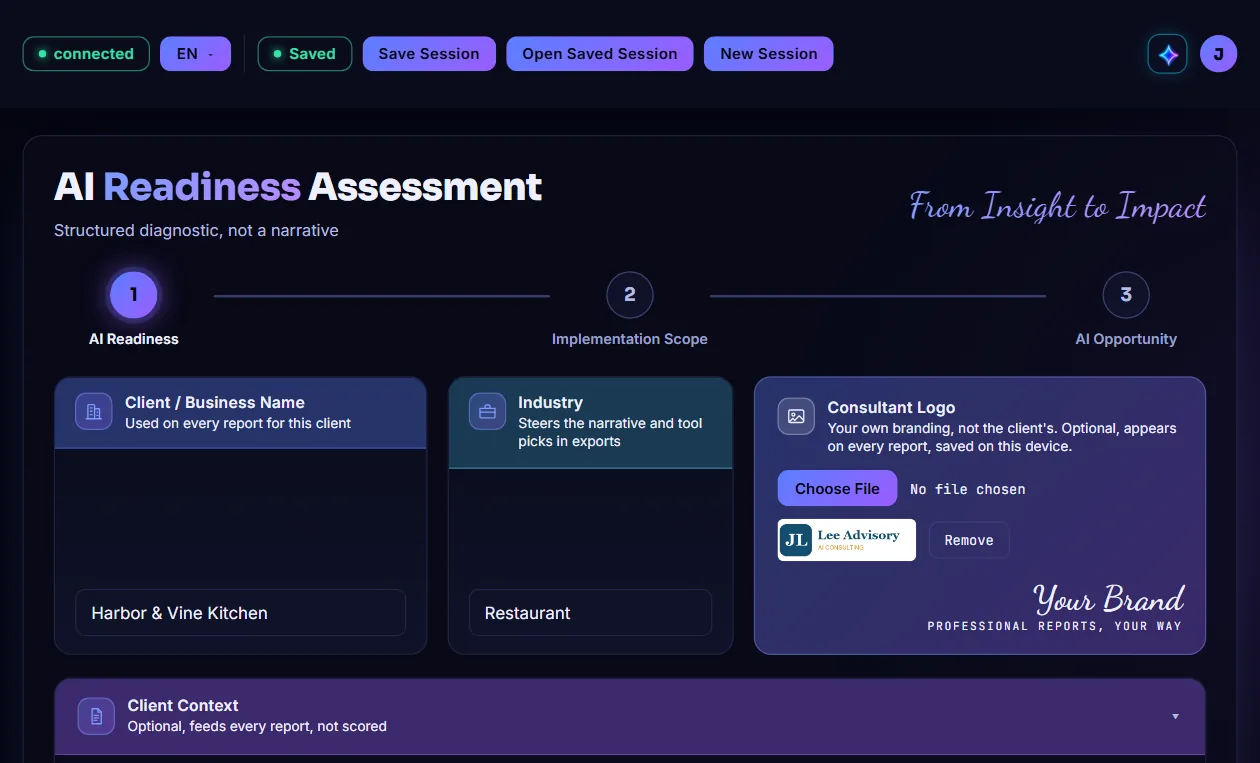
When the badge in the header says Unsaved, you have changes that are not in a file yet. Press Save Session.

-
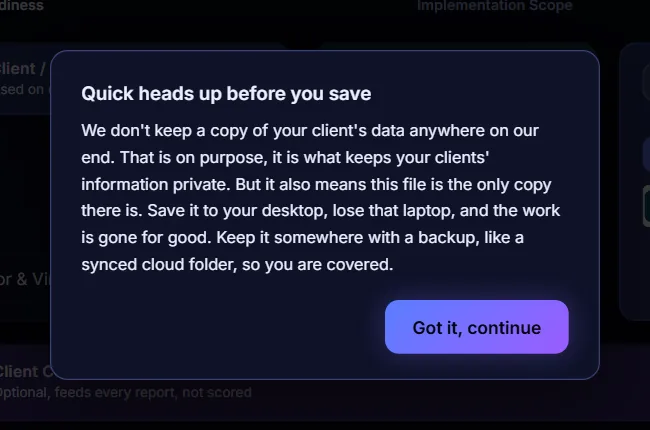
Read the reminder the first time
The first time you save, the app reminds you that your file is the only copy. Press Got it, continue.
-
Choose where to keep the file
If your browser asks where to save, pick a folder you back up. Otherwise the file goes to your Downloads folder. It is named after the client and the date, for example Harbor_Vine_Kitchen_2026-10-03.clientbriefai.json. The badge then changes to Saved.

-
Open a saved session
Press Open Saved Session and choose the client's file. The app confirms that the session is loaded and fills in the client name, industry, logo, answers, scores and reports.
-
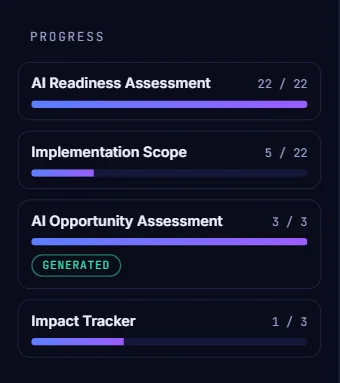
Check where you left off
Scroll down the sidebar to PROGRESS to see how far each part is for this client.
-
Start a new client
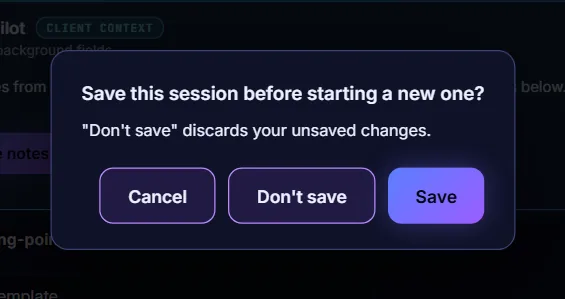
Press New Session to clear the screen for the next client. If you have unsaved changes, the app asks first. Choose Save to keep them, Don't save to discard them, or Cancel to stay.