ClientBriefAI
Track results with Impact Tracker
Impact Tracker follows up on the opportunities from the AI Opportunity Assessment. Use it at each check-in to record progress and before and after numbers.
-
Open Impact Tracker
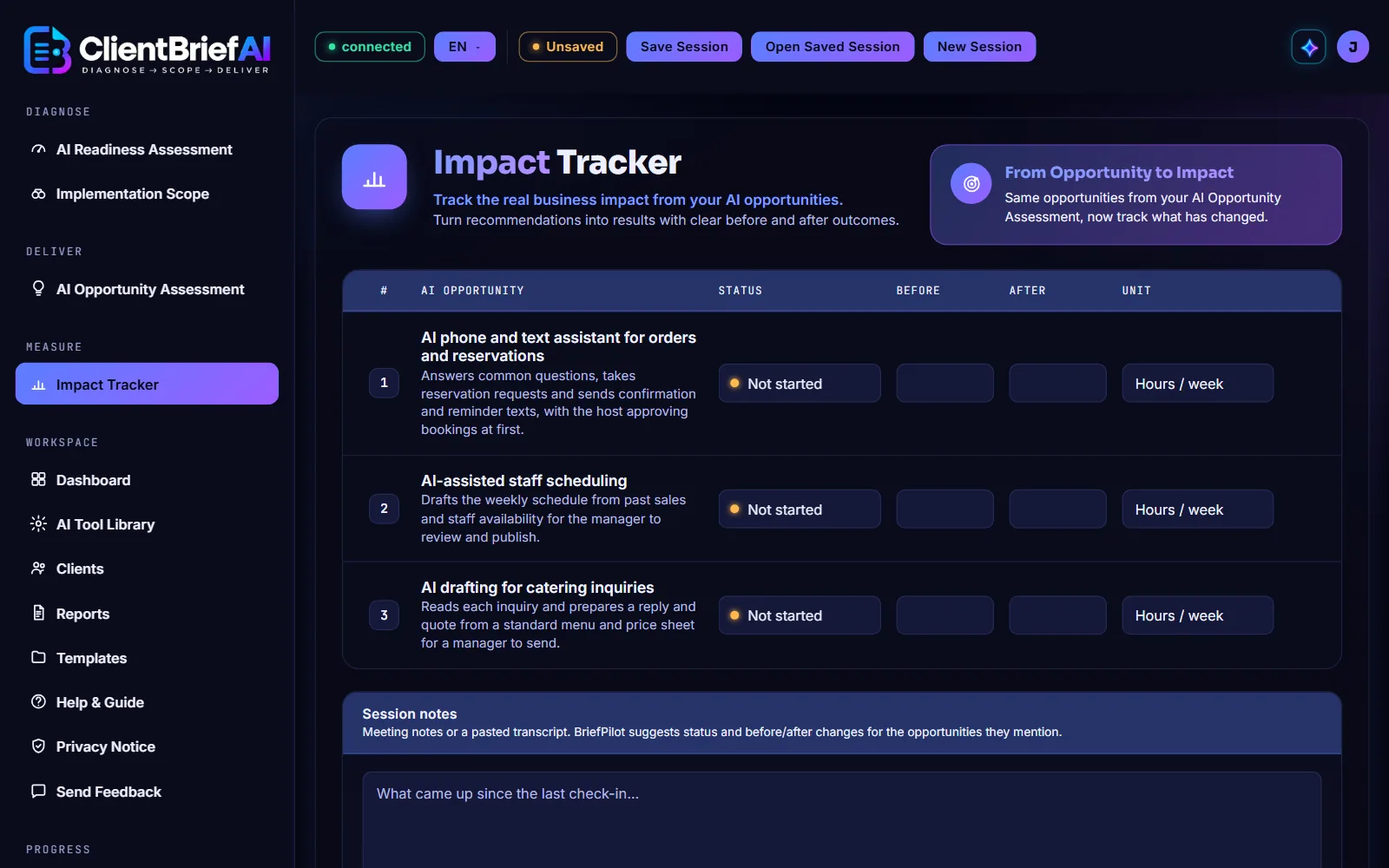
Choose Impact Tracker in the sidebar. It lists the opportunities from this client's AI Opportunity Assessment, in the same order. If you see "Generate an AI Opportunity Assessment first", create the assessment or open the client's saved session.
-
Record status and numbers
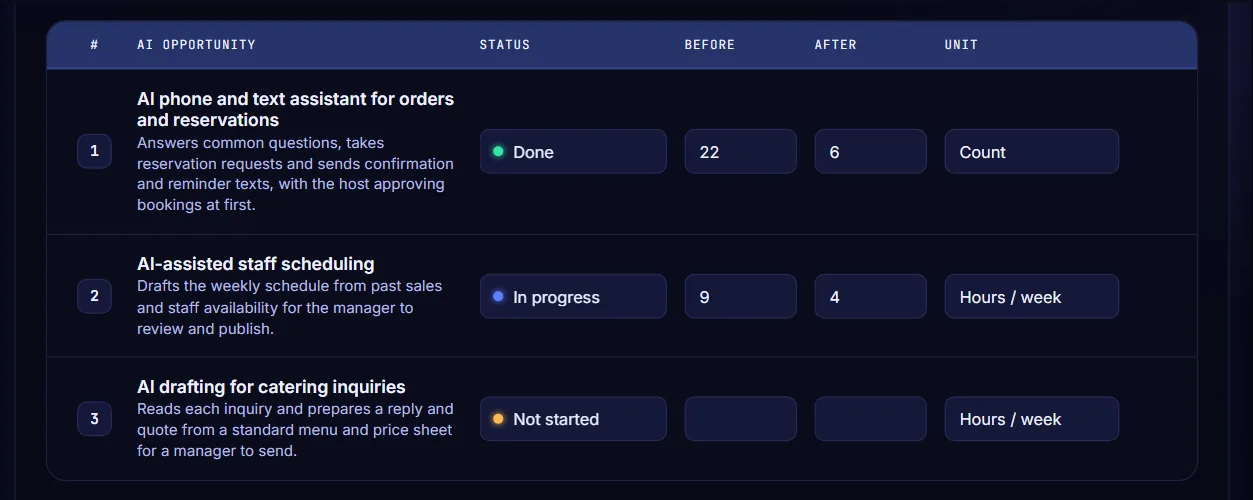
For each opportunity set the Status to Not started, In progress or Done. Type the Before and After numbers and choose the Unit: Hours / week, Dollars / month, Days or Count.
-
Add session notes
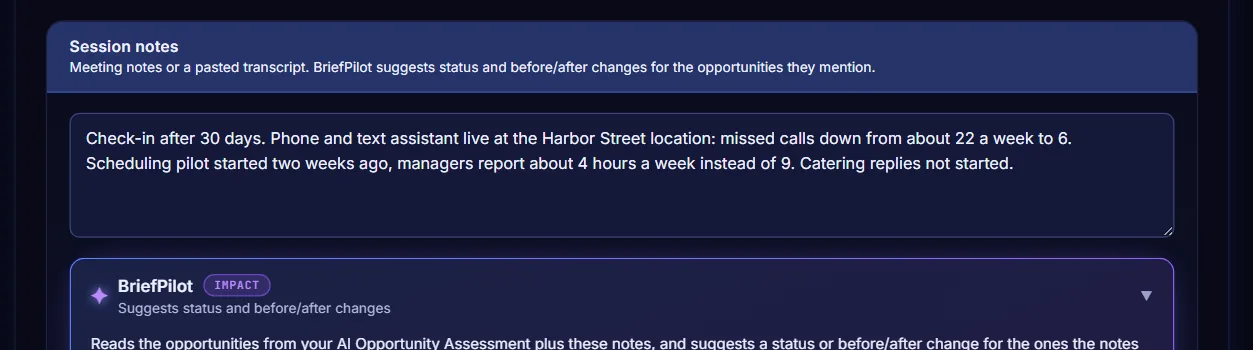
Type your check-in notes or paste a transcript in Session notes so the story behind the numbers stays with the client's session.
-
Generate the Impact Report
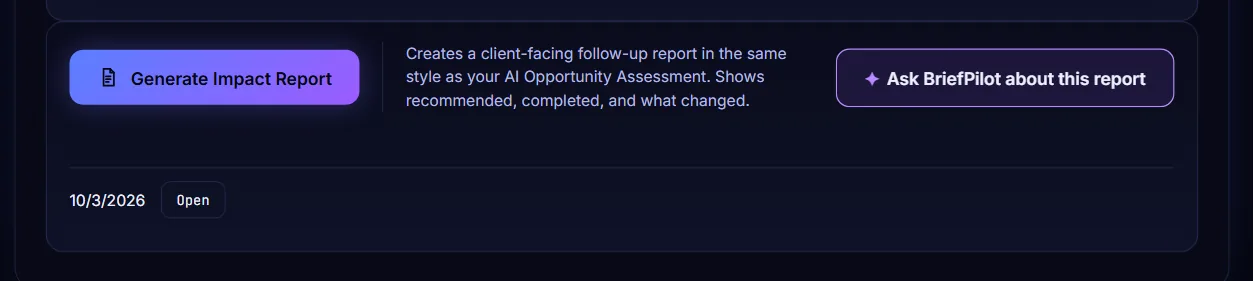
Press Generate Impact Report. The report opens in a new tab and a dated copy is listed under the button. Press Open beside a date to see that report again.
-
Share the report
The Impact Report shows each opportunity, its status and what changed. Press Print / Save as PDF or Download HTML to send it to the client.