ClientBriefAI
Dashboard, Clients, Reports and Templates
The WORKSPACE group in the sidebar holds the pages that sit around your client work. They read files and lists kept on your own computer.
-
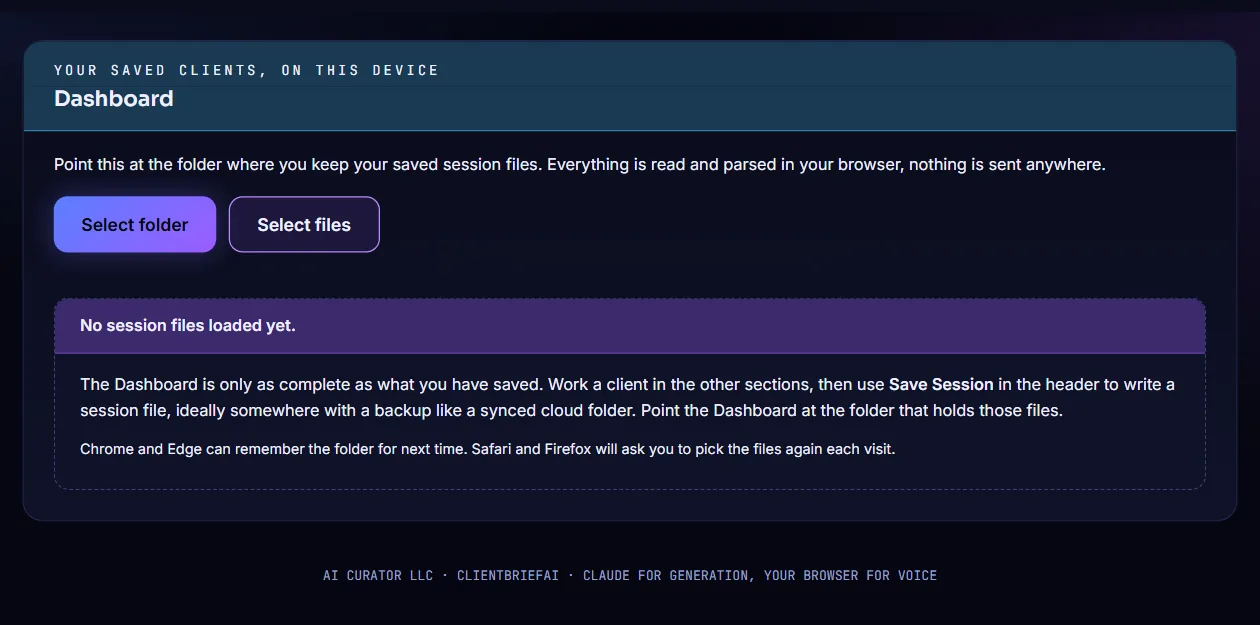
Point the Dashboard at your session files
Choose Dashboard in the sidebar. Press Select folder or Select files and choose the session files you have saved. The files are read in your browser and are not sent anywhere.
-
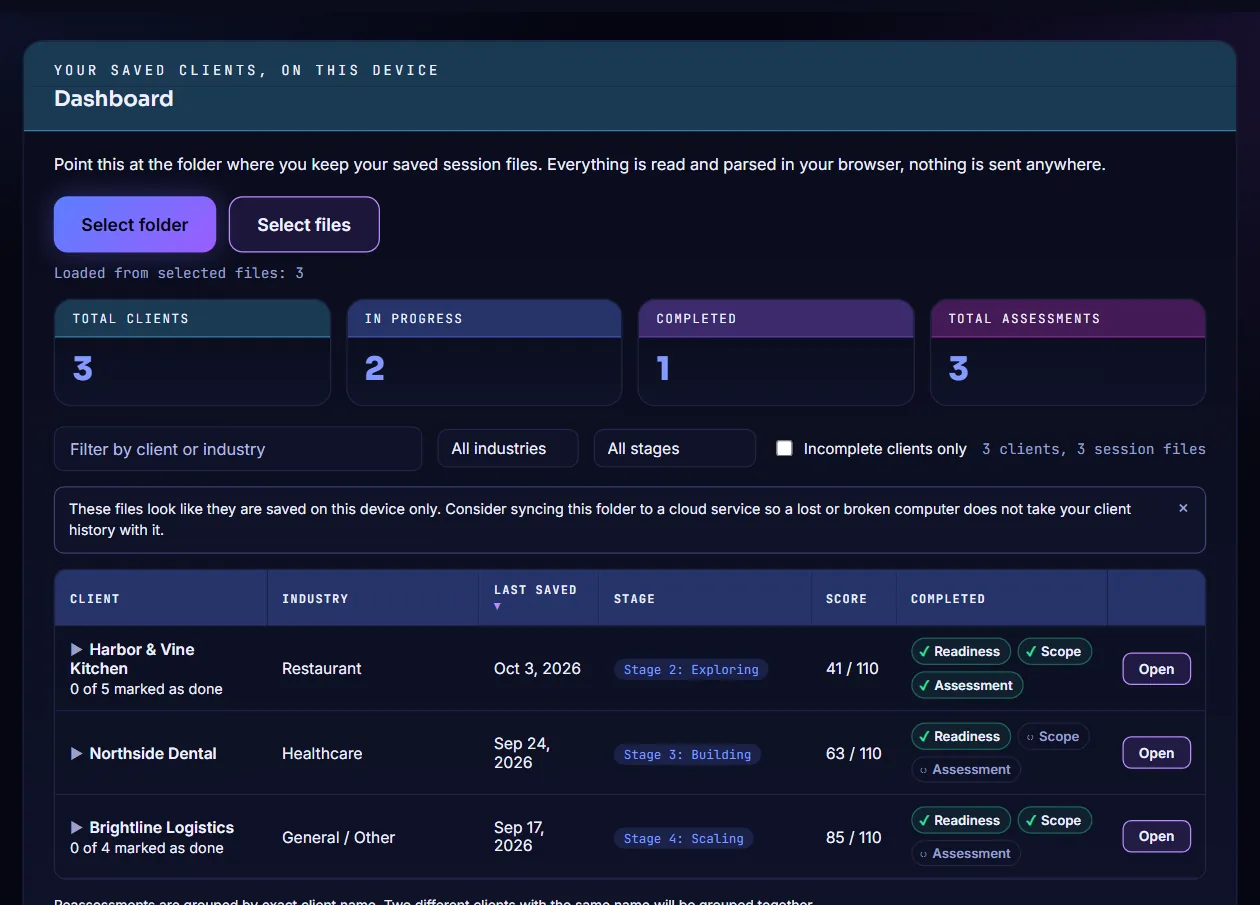
Review your clients on the Dashboard
The Dashboard counts your clients and lists each one with its industry, last saved date, readiness stage, score and which parts are complete. Use the filters to narrow the list. Press Open on a row to load that client's session.
-
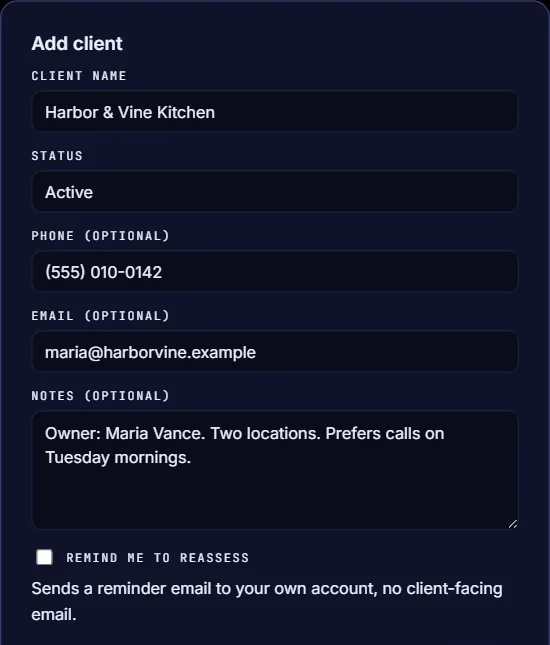
Add a client to your contact list
Choose Clients, then press Add client. Enter the client name and status, and add a phone number, email and notes if you want. Press Save.
-
Manage your client list
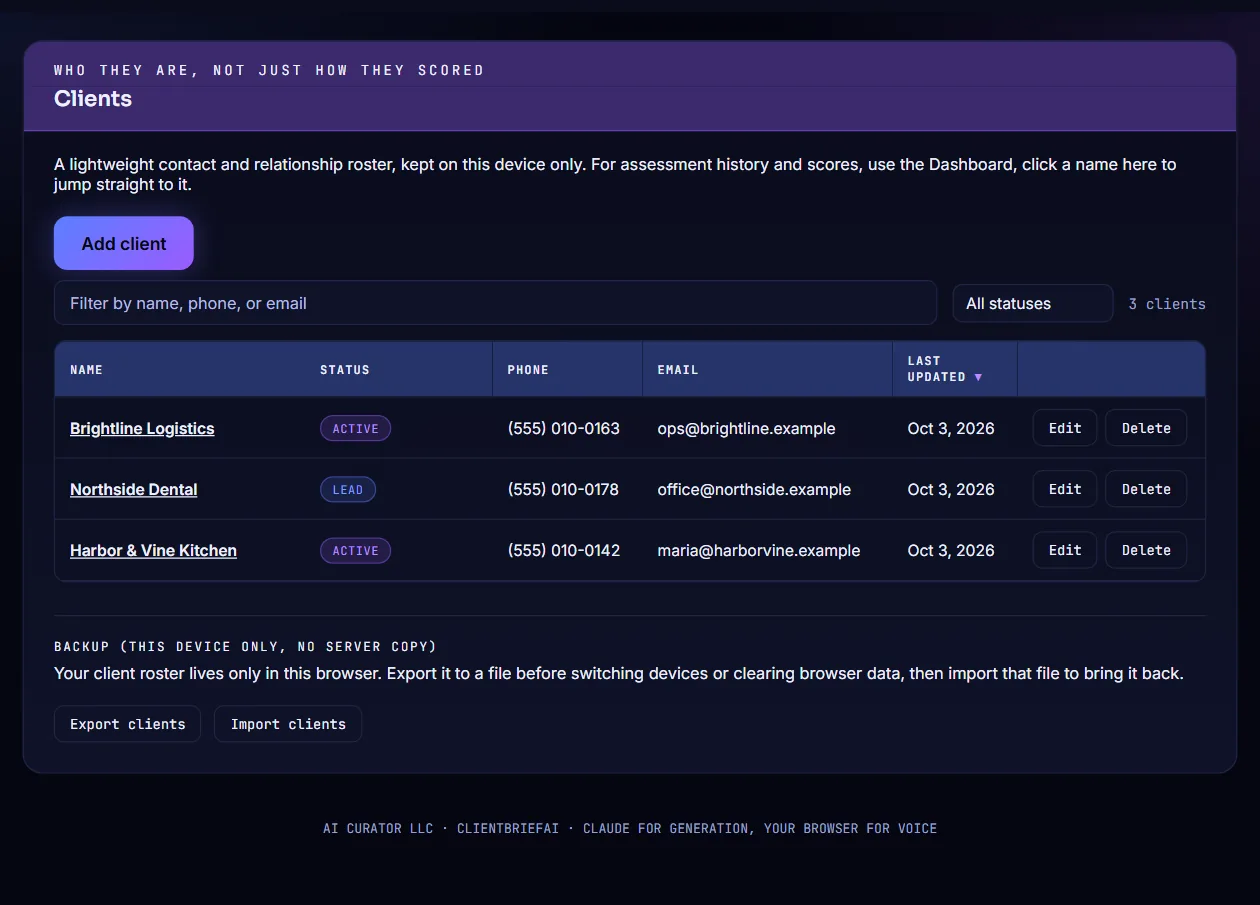
Clients shows your contact list with status, phone, email and the last update. Use Edit or Delete on a row, and the filter box to find someone. The list is kept in this browser only, so use Export clients to make a backup file and Import clients to bring it back.
-
Reopen a downloaded report
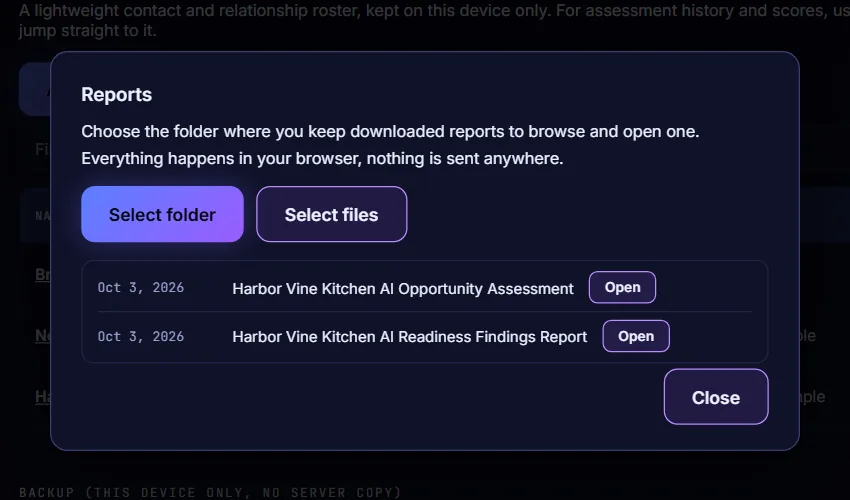
Choose Reports. Press Select folder or Select files and choose the reports you saved with Download HTML. Press Open beside a report to view it in a new tab.
-
Use a discovery script from Templates
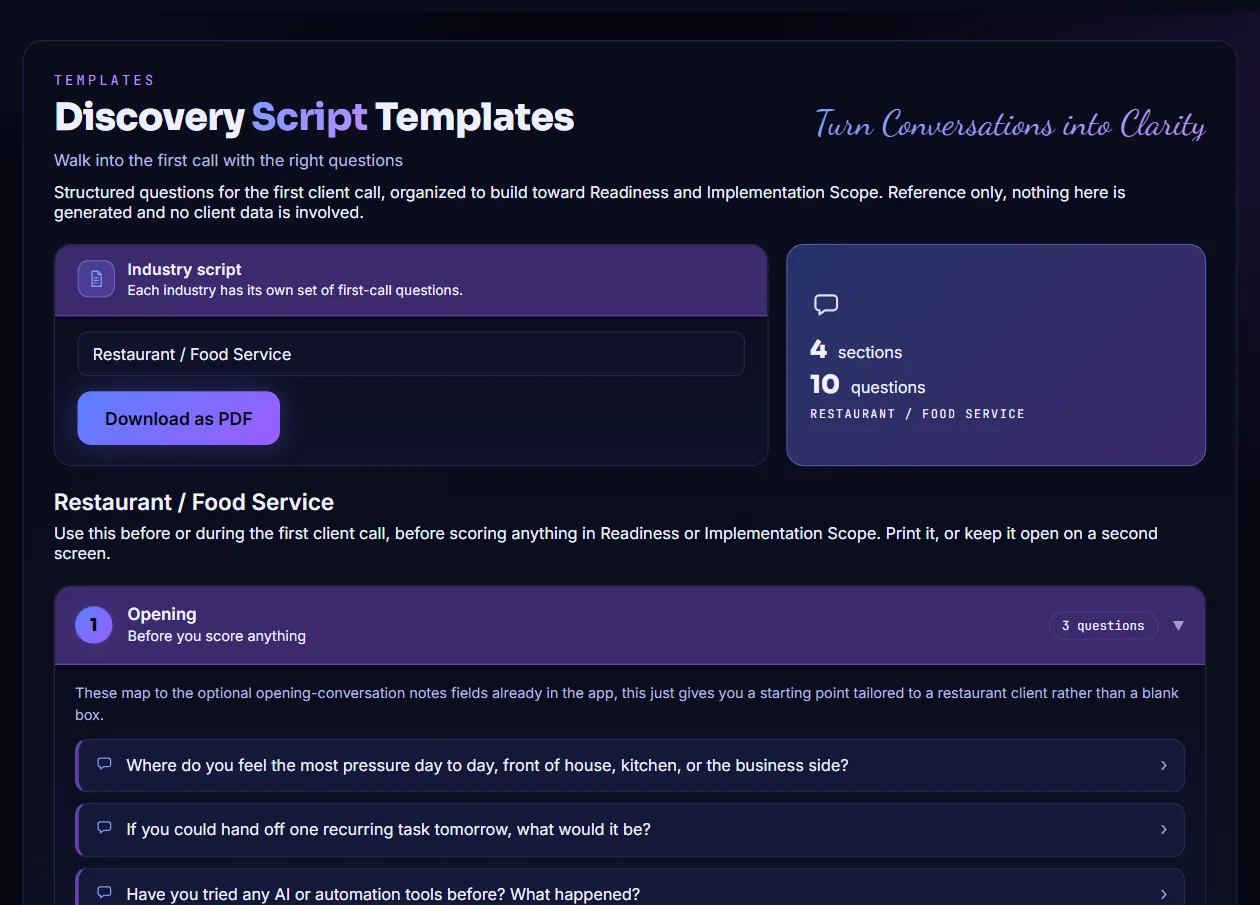
Choose Templates and pick an industry under Industry script. You get a set of first-call questions grouped into sections. Press Download as PDF to open a version you can print or save.
-
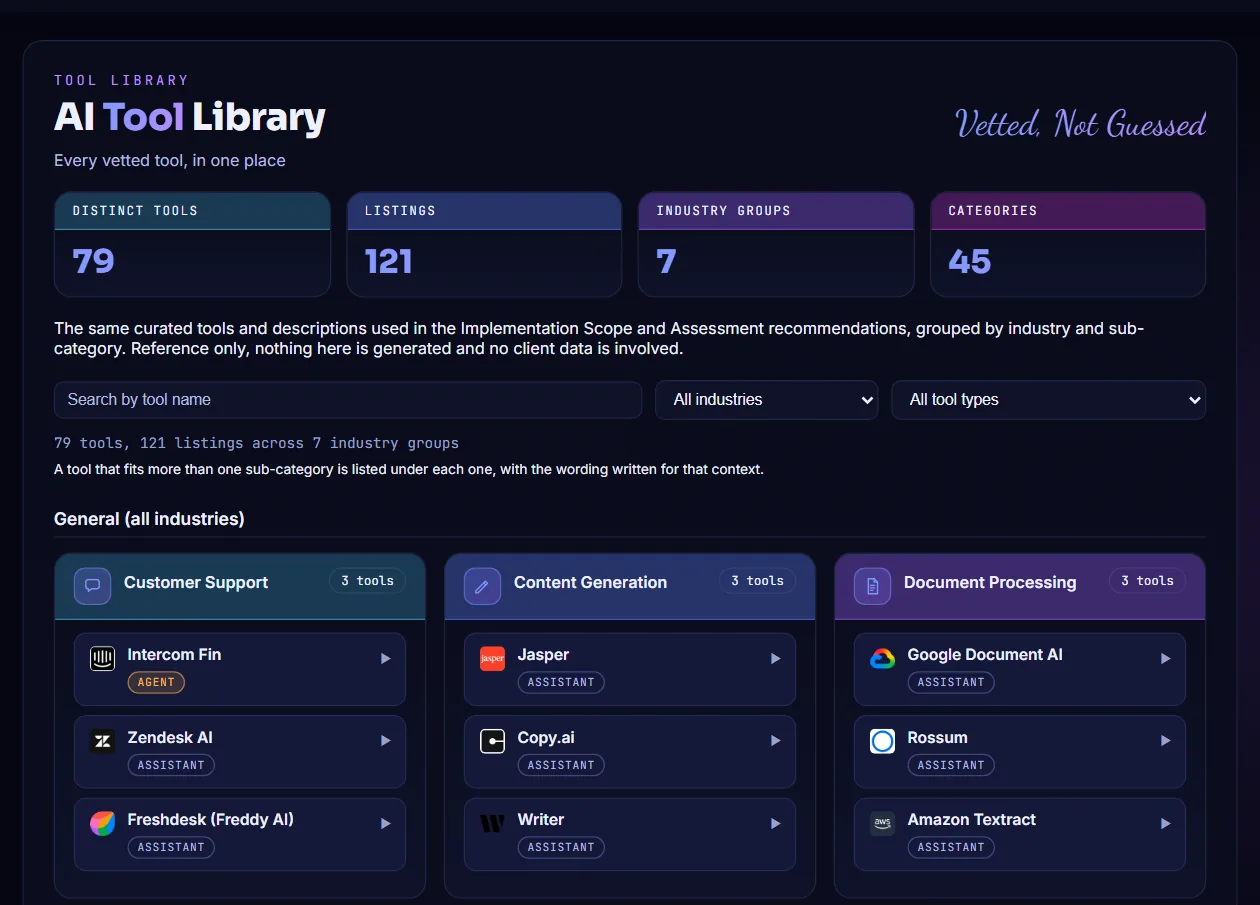
Browse the AI Tool Library
Choose AI Tool Library to see the vetted tools the reports draw on, grouped by industry and category. Search by tool name, or filter by industry and tool type.