AdoptBriefAI
Write Quick Start guides for each role
Enable gives each role a one page Quick Start guide for each tool they use Weekly or Daily. Do this once the Map is filled in.
-
Generate the guides
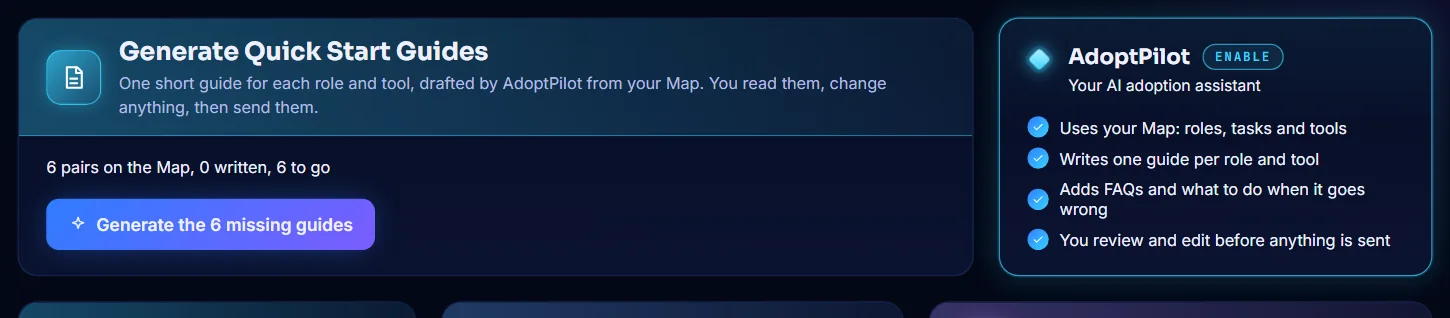
Open Enable. The line under Generate Quick Start Guides shows how many pairs are on the Map and how many guides are written. Select Generate the 6 missing guides (the number is your own). The guides are written one after another.
-
Pick a role and a tool
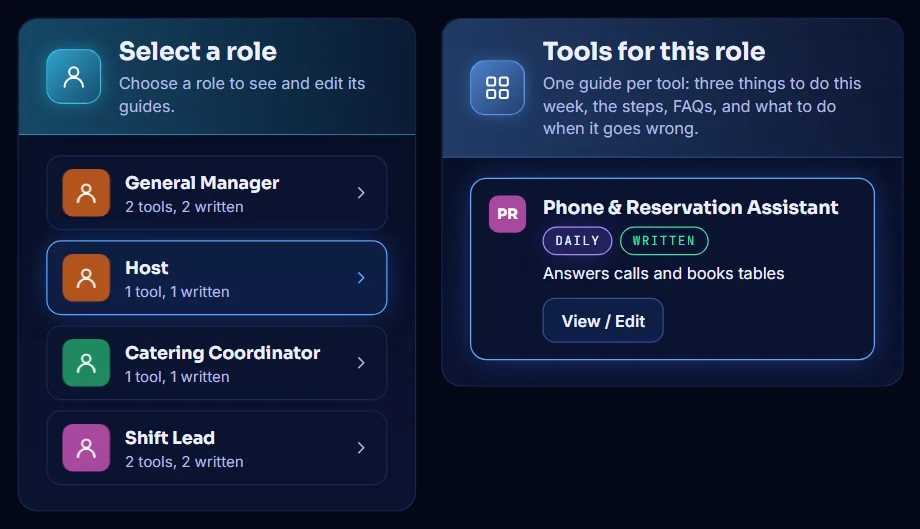
Under Select a role, choose a role. Tools for this role lists its tools, each marked Written when its guide is ready. Select View / Edit to see that guide.
-
Read the guide
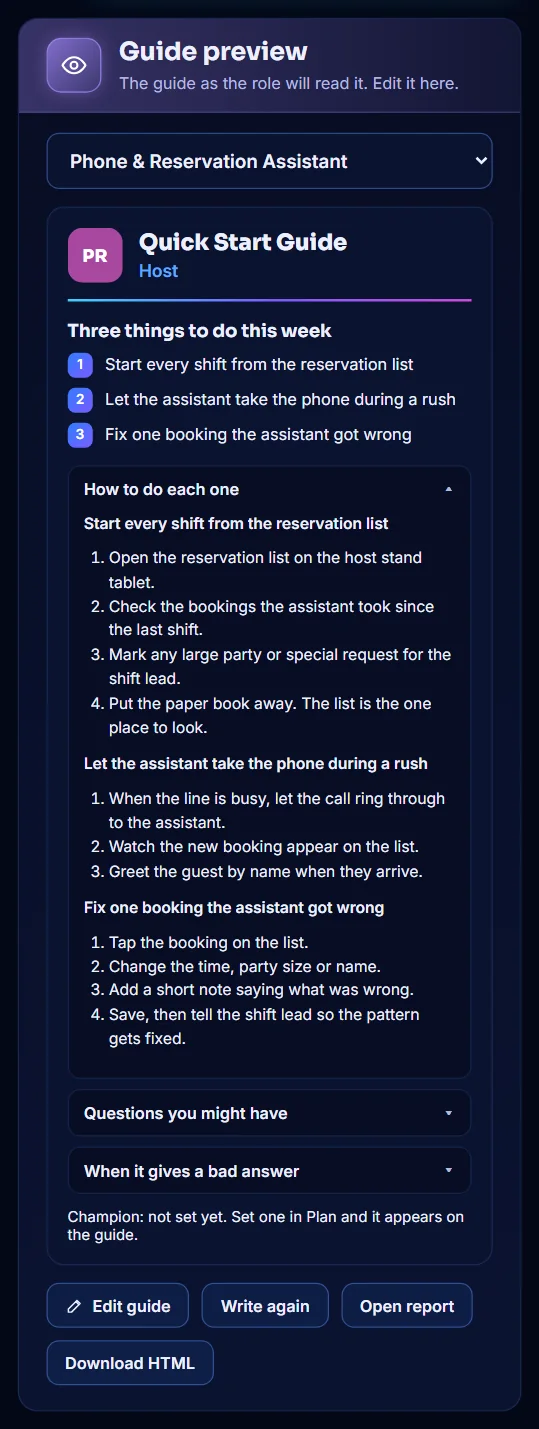
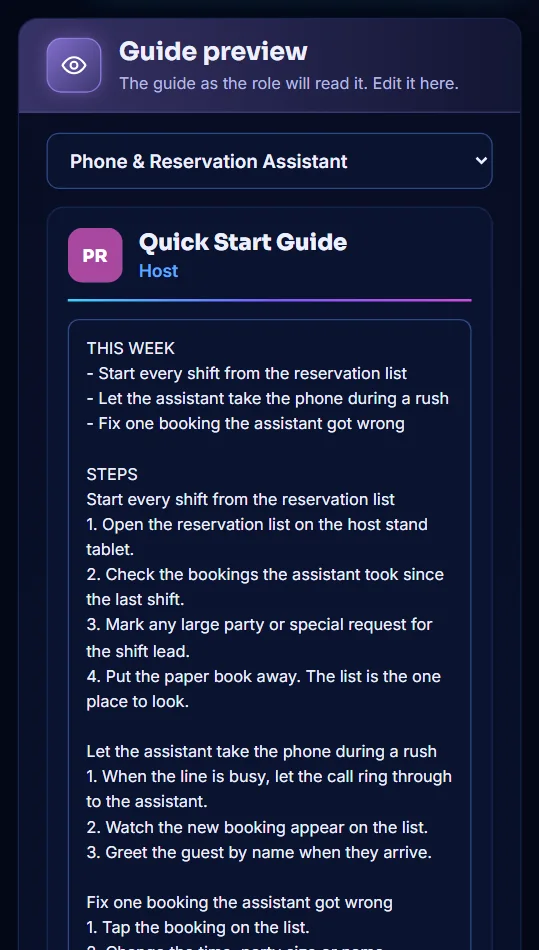
Guide preview shows the guide as the role will read it. It starts with three things to do this week. Open How to do each one, Questions you might have and When it gives a bad answer to read the rest.
-
Edit the guide
Select Edit guide to change the wording, then select Done. Keep the four headings in capital letters as they are, so the guide keeps its sections. To have AdoptPilot start over, select Write again.
-
Check every guide and download them
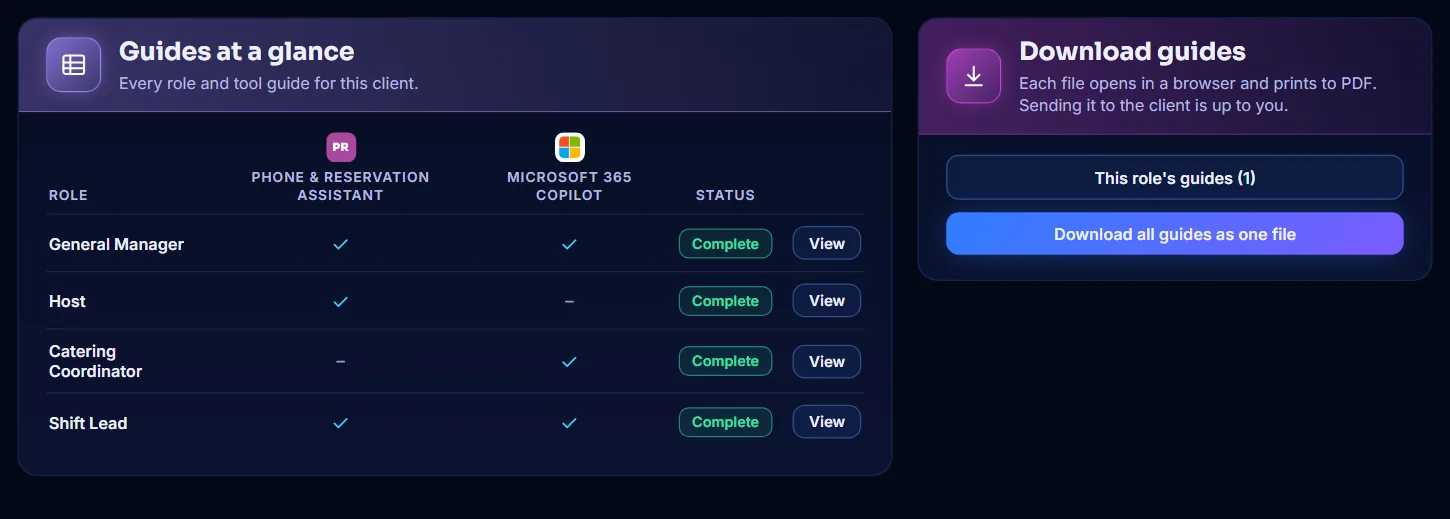
Guides at a glance shows each role against each tool. A check mark means the guide is written. In Download guides, select This role's guides or Download all guides as one file.
-
Open a guide as a report
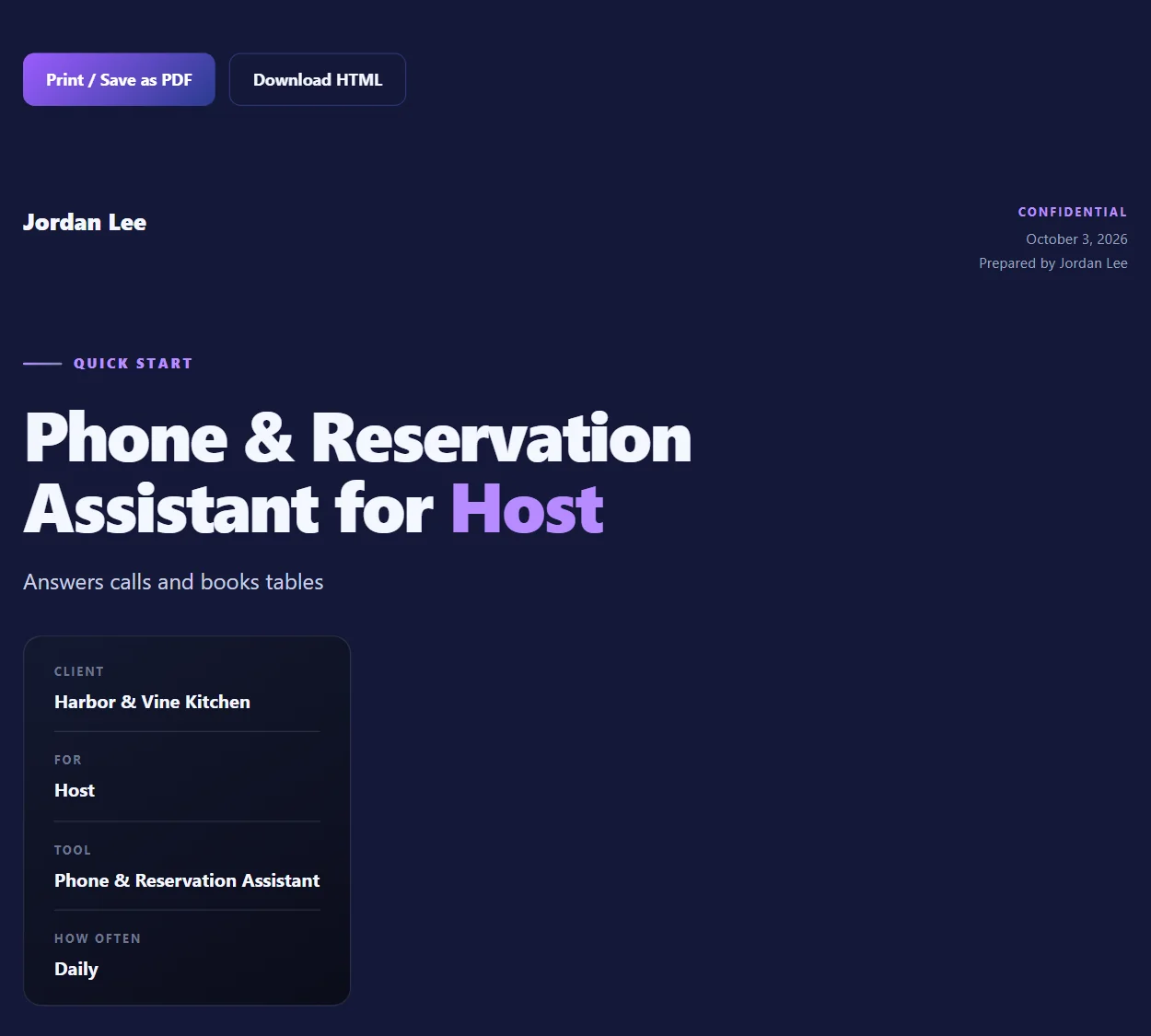
Under the preview, select Open report. The guide opens in a new tab with your name on it. Select Print / Save as PDF or Download HTML, then send it to the client yourself.