AdoptBriefAI
Map who uses which tool
The Map is the first step of every rollout. It records the client, the roles, the tools and who is expected to use what. The other steps are built from it.
-
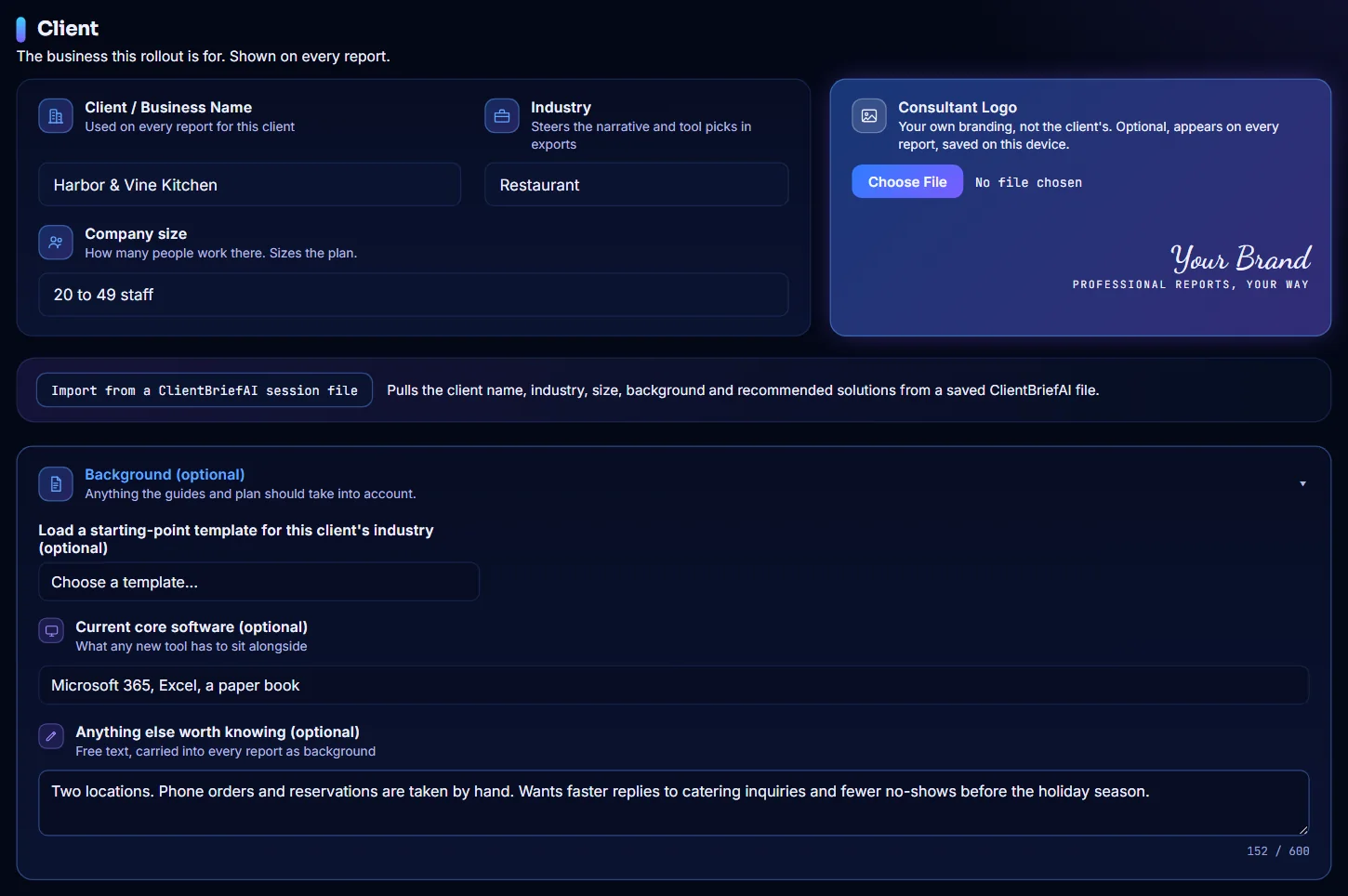
Enter the client
Open Map. Type the Client / Business Name, then choose the Industry and the Company size. Open Background (optional) to add the software they use today and anything else worth knowing.
-
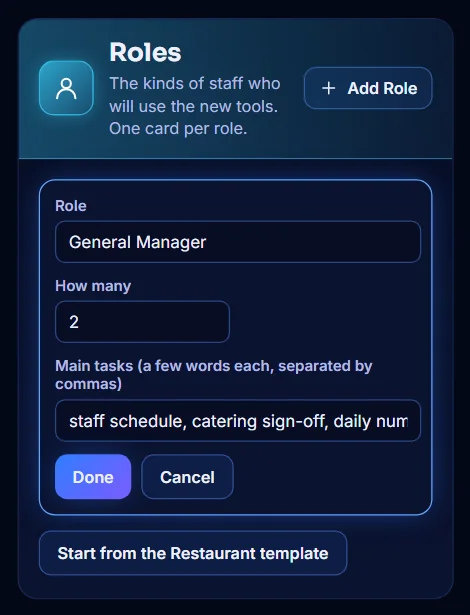
Add a role
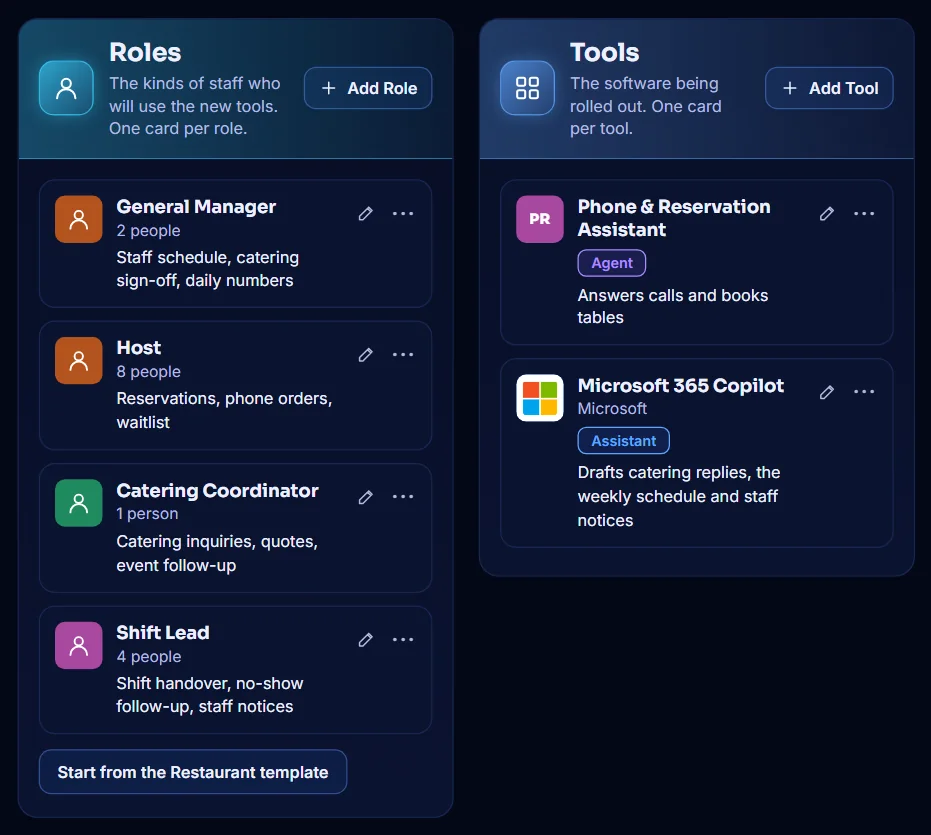
In Roles, select Add Role. Type the role, how many people have it, and their main tasks separated by commas. Select Done.
-
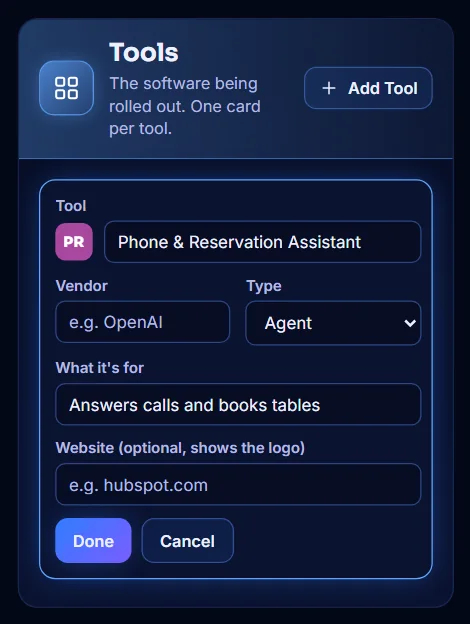
Add a tool
In Tools, select Add Tool. Type the tool's name and what it is for. For Type, choose Assistant when a person reviews what it produces, or Agent when it acts on its own. Select Done.
-
Or let AdoptPilot suggest from your notes
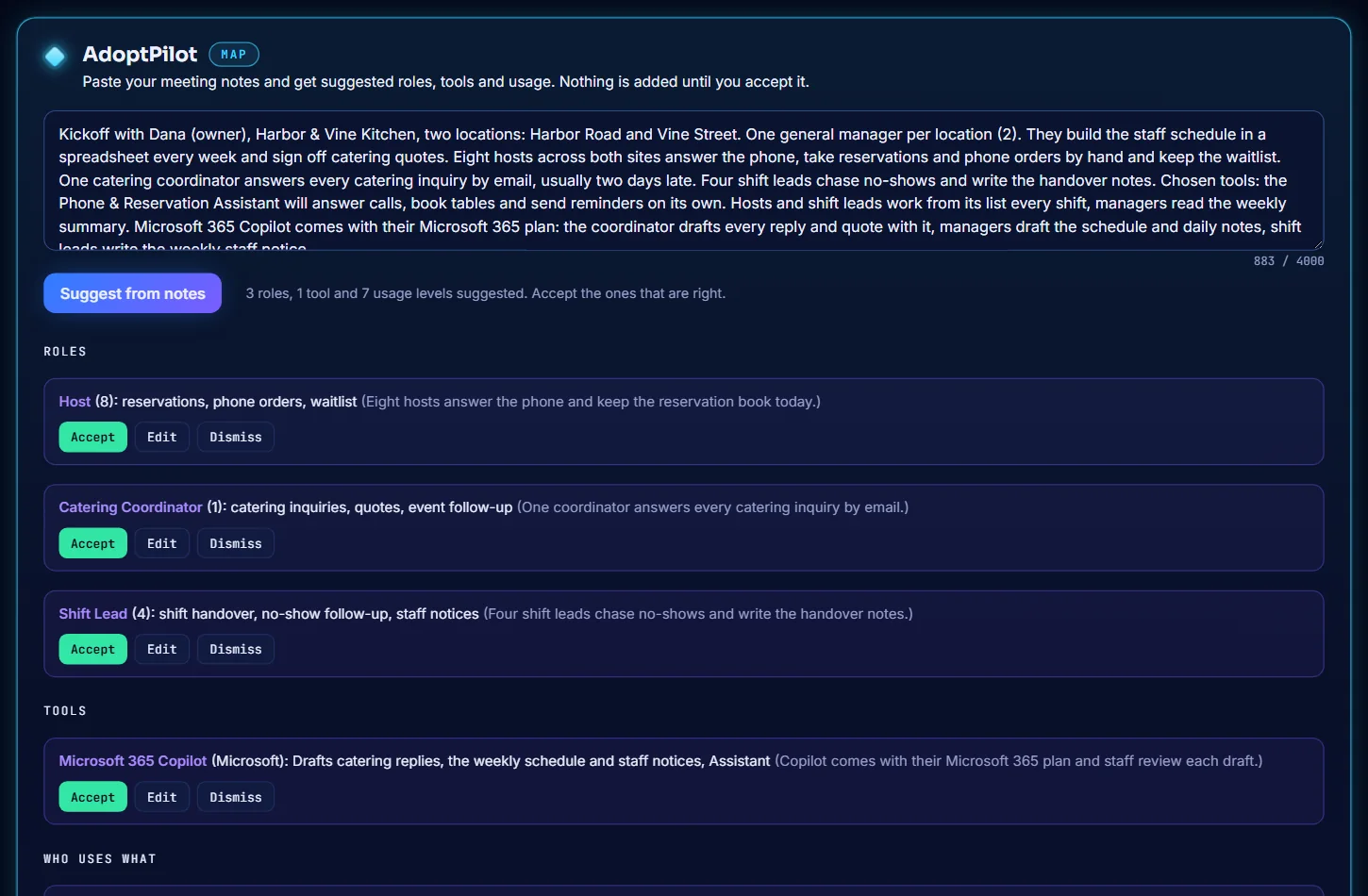
Scroll to AdoptPilot at the bottom of the Map. Paste your meeting notes and select Suggest from notes. Select Accept on each suggestion that is right, Edit to change it first, or Dismiss to drop it. Nothing is added until you accept it.
-
Check the role and tool cards
Each role and each tool has its own card. Select the pencil to change a card, or the three dots to remove it.
-
Set who uses what
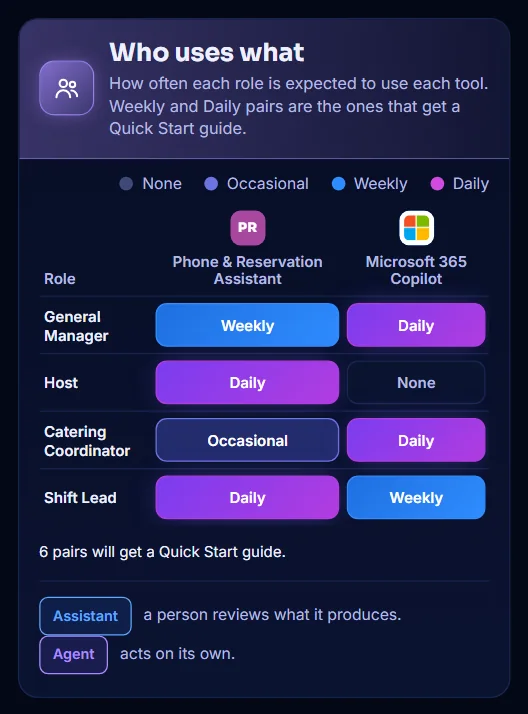
In Who uses what, choose None, Occasional, Weekly or Daily for each role and tool. Weekly and Daily pairs are the ones that get a Quick Start guide. The line under the grid tells you how many.
-
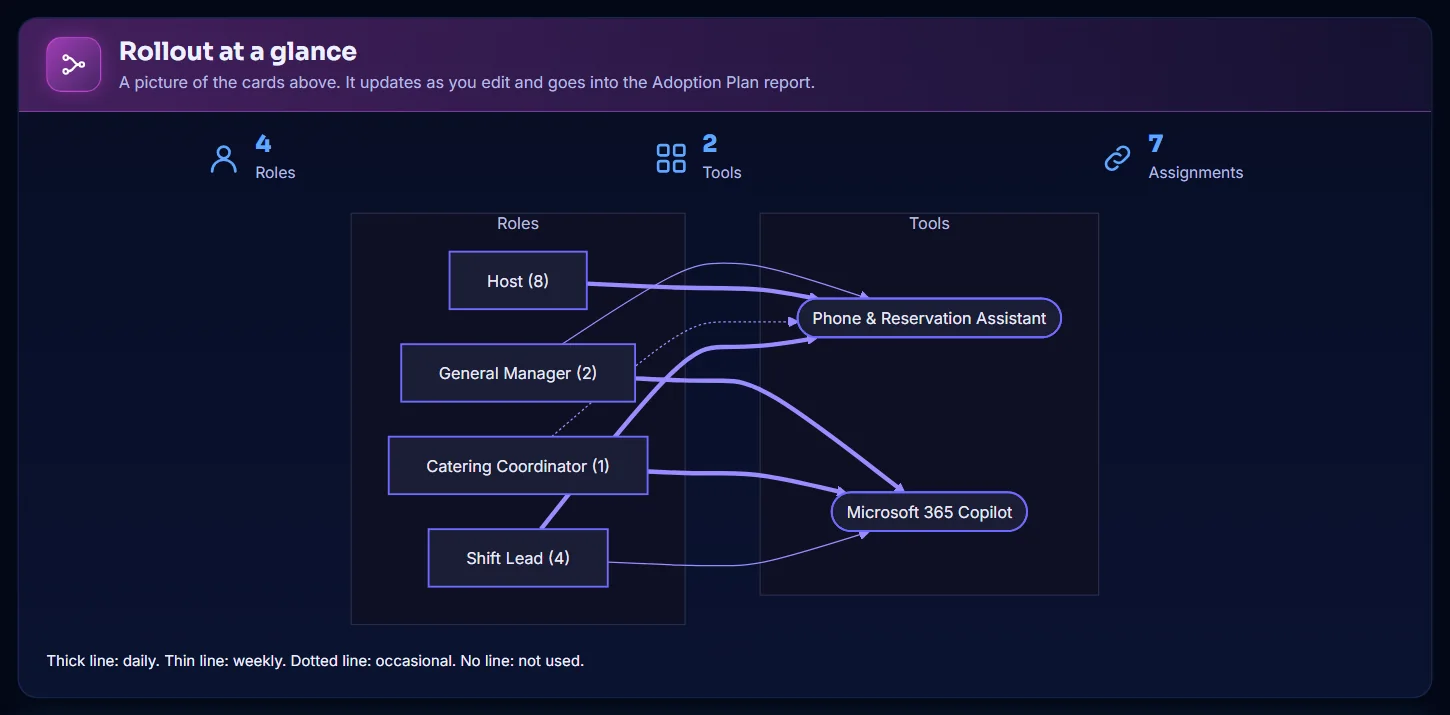
Check the rollout at a glance
Rollout at a glance draws the Map as a picture. A thick line means daily, a thin line weekly and a dotted line occasional. The picture updates as you edit and goes into the Adoption Plan report.