AdoptBriefAI
Use and build templates
Templates hold starter sets of roles, tools and usage for each industry, plus the questions to ask in your meetings. Set them up once and reuse them with every client.
-
Pick an industry template
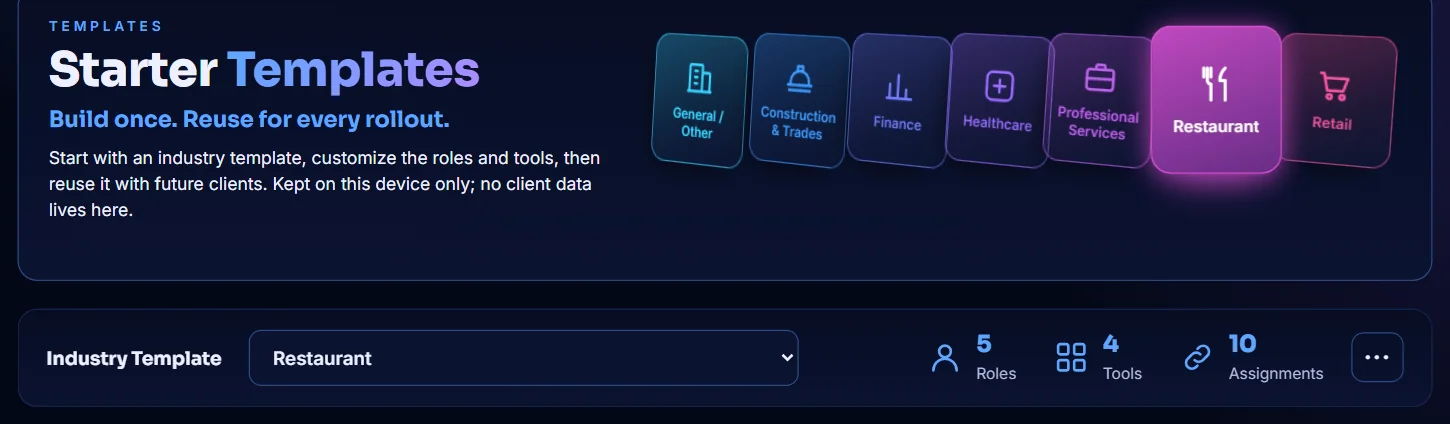
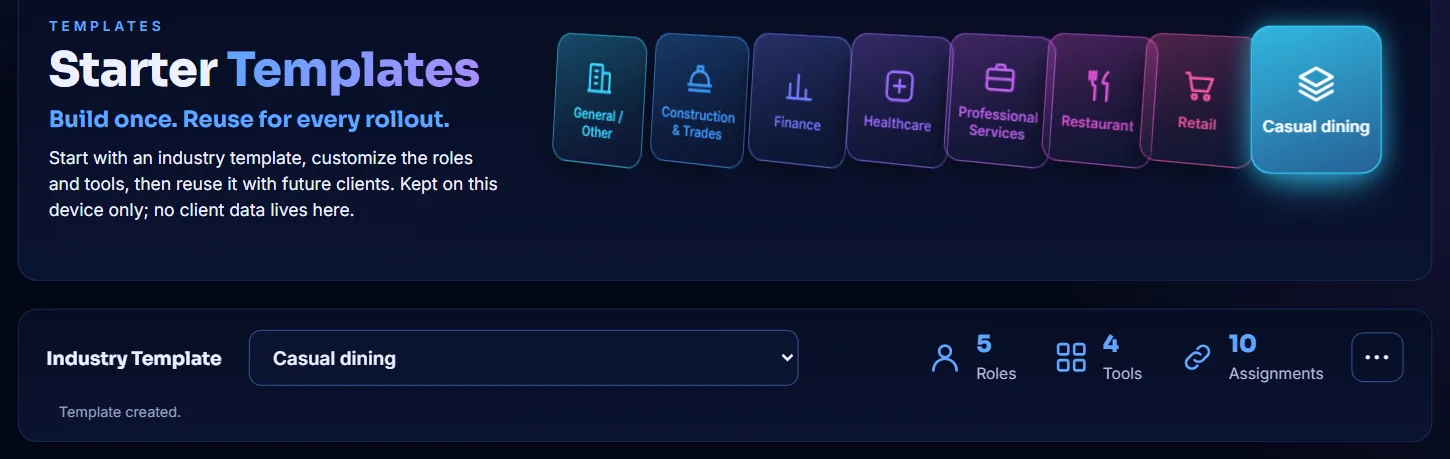
Open Templates and select an industry tile, or choose one from Industry Template. The counts show how many roles, tools and assignments the template has.
-
Change the roles and tools
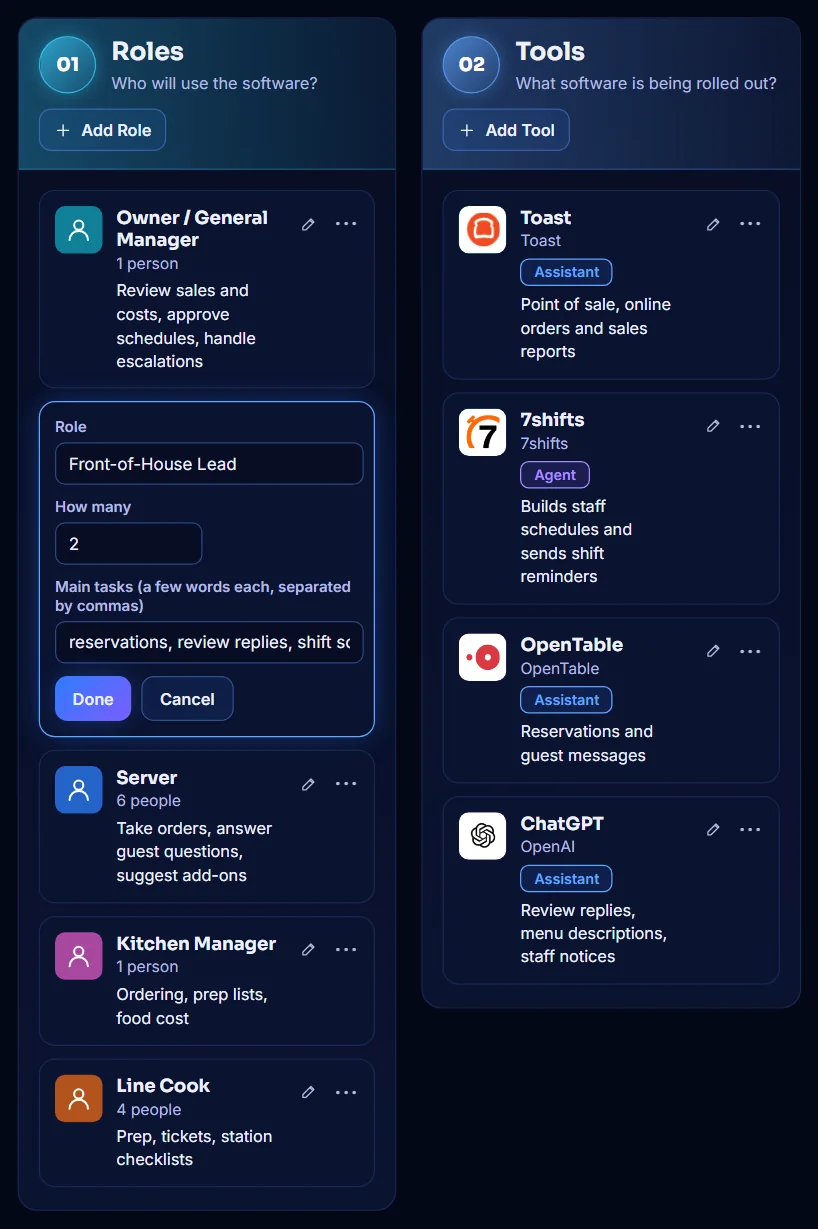
Select the pencil on a role or tool to change it, then select Done. Use Add Role and Add Tool to add more. Your changes are saved as you go.
-
Set the usage map
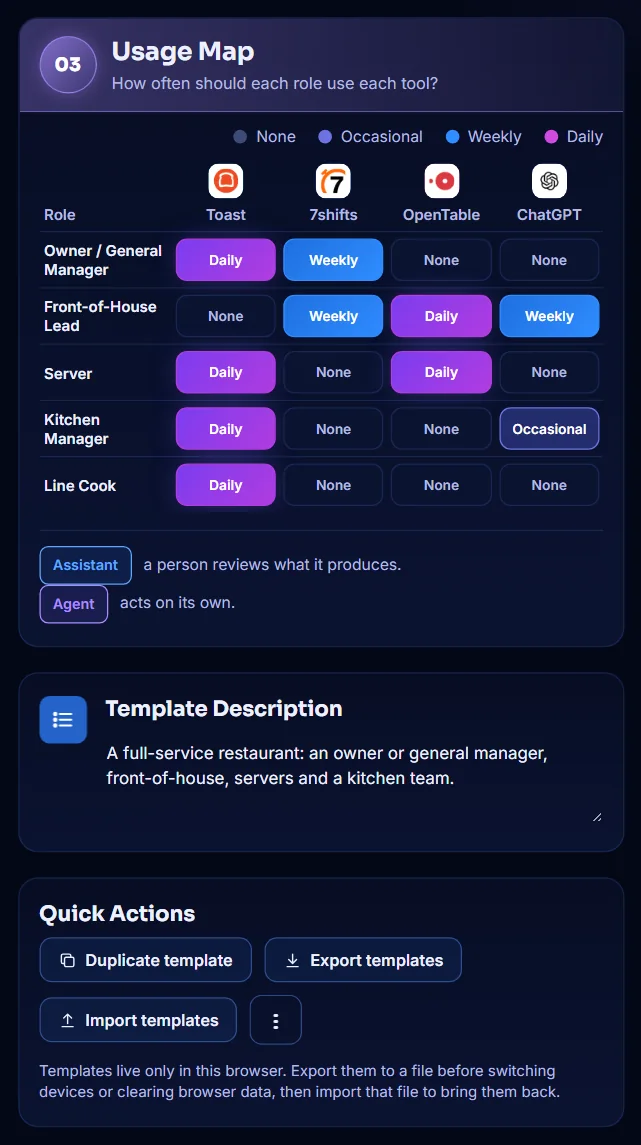
In Usage Map, choose how often each role should use each tool. Template Description says what kind of business the template fits.
-
Use the meeting guides
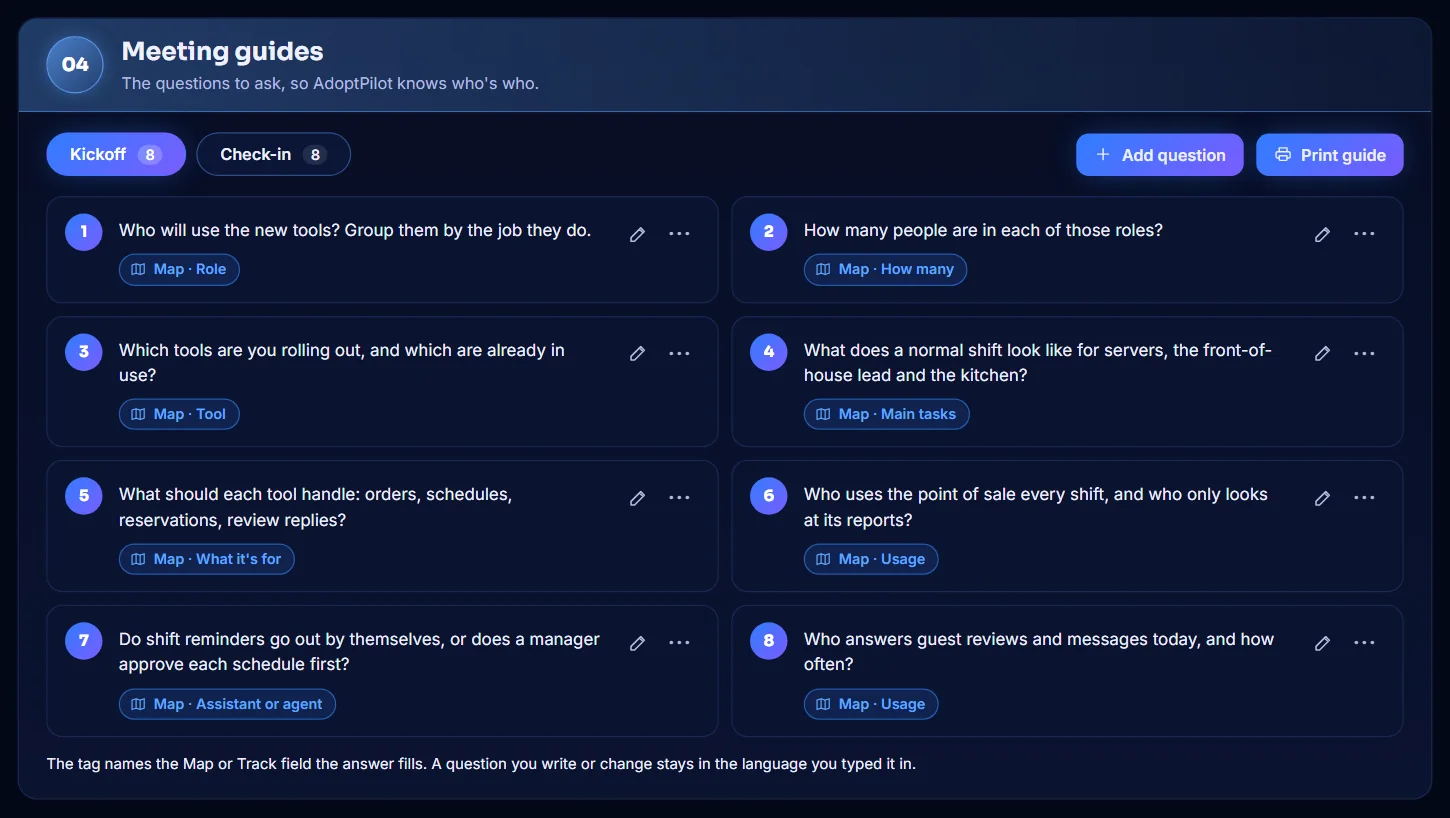
Meeting guides lists the questions to ask at the Kickoff and at a Check-in. The tag under each question names the field its answer fills. Select Add question to add your own, or Print guide to take it into the meeting.
-
Make your own template
Select Duplicate template and type a name. The copy appears as its own tile and under Your templates in the list. Change it without touching the industry template.
-
Back up your templates
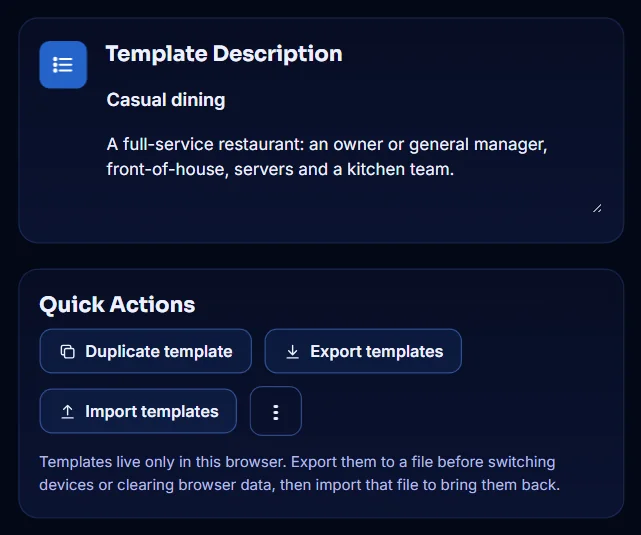
Templates are kept in this browser only. Select Export templates to save them to a file. On another computer, select Import templates and choose that file.
-
Use a template on the Map
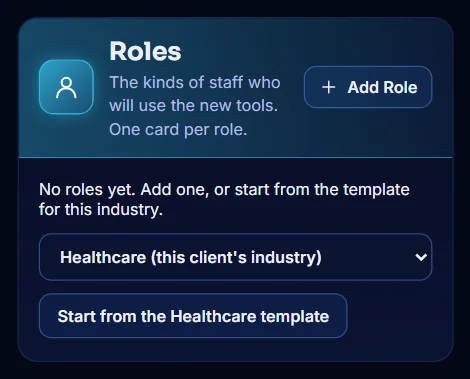
Start a new session, enter the client and choose the Industry. Under Roles, select the Start from the template button. Once you have a template of your own, a list above the button lets you pick it instead.