
AdoptBriefAI
Open AdoptBriefAI and find your way around
AdoptBriefAI is where you work after a client has chosen an AI tool, to make the rollout stick. Start here the first time you open it.
-
Open it from the Command Center
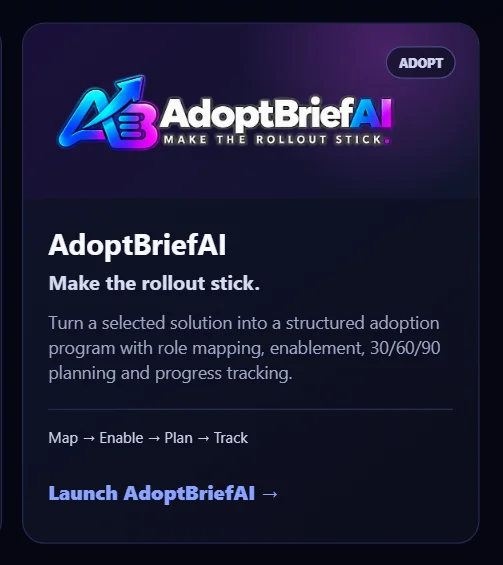
Sign in at the Command Center and find the AdoptBriefAI card. Select Launch AdoptBriefAI. The app opens in a new tab and you are already signed in.
-
Start on Home
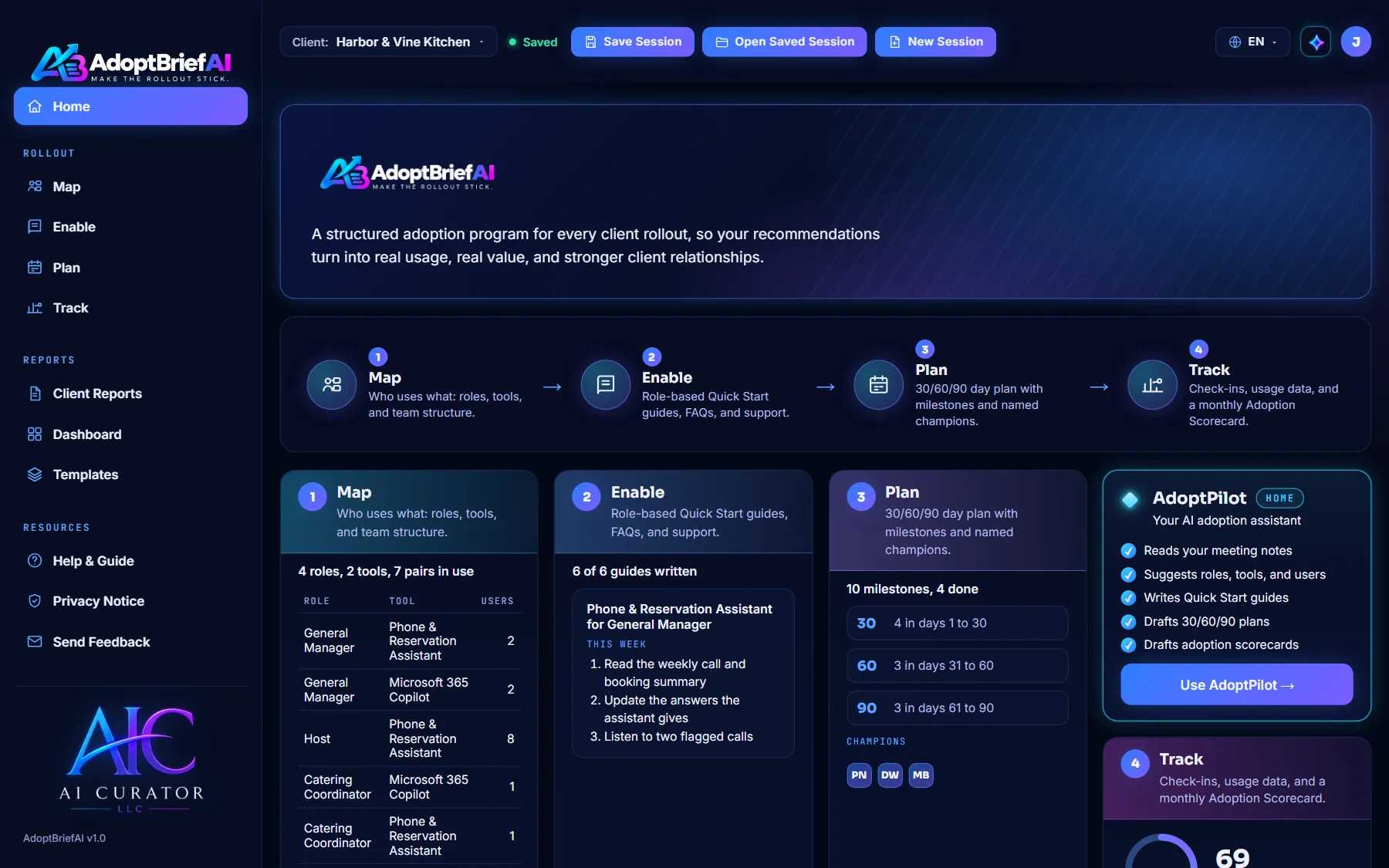
Home shows the four steps of a rollout: Map, Enable, Plan and Track. Each card shows where the client on screen stands, with a button to open that step.
-
Move between areas in the sidebar
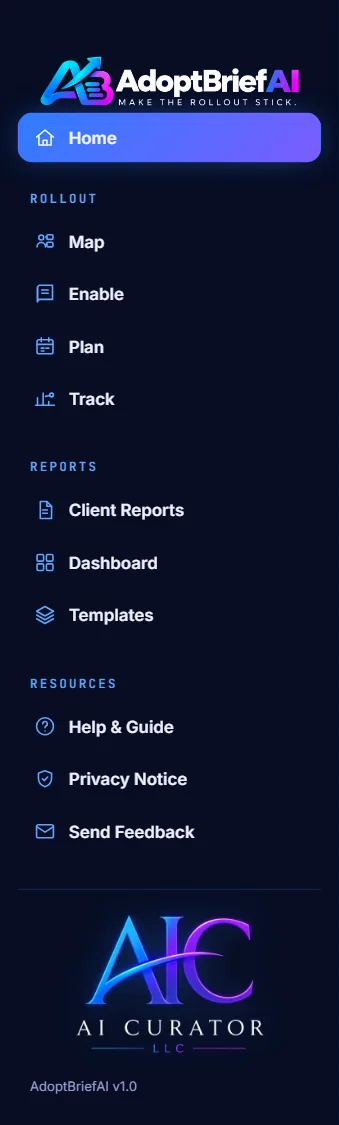
Under Rollout you have Map, Enable, Plan and Track. Under Reports you have Client Reports, Dashboard and Templates. Select a name to open that area.
-
Read the header
The header shows the client you are working on and whether your work is saved. Next to it are Save Session, Open Saved Session and New Session. On the right you can change the language and open your account menu.

-
Switch to another app
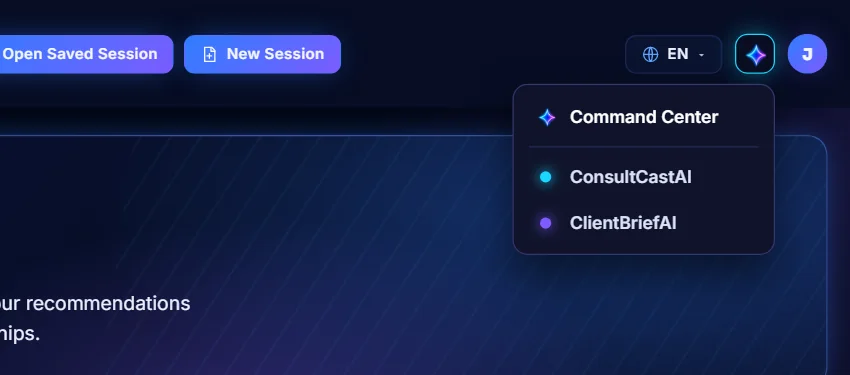
Select the sparkle button in the header. From the menu you can go back to the Command Center or open ConsultCastAI or ClientBriefAI. Each one opens in a new tab, so your work here stays open.
-
Save the session to your computer
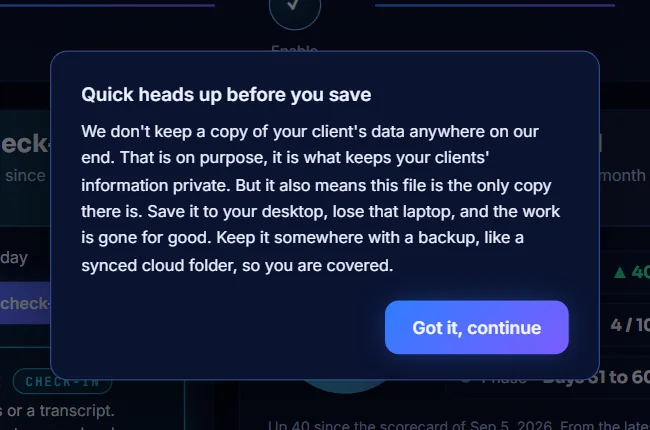
Select Save Session. The first time, you see a notice that the file is the only copy of the client's work. Select Got it, continue and choose where to keep the file. Its name ends in .adoptbriefai.json.
-
Open a saved session
Select Open Saved Session and choose the client's file. Everything comes back: the Map, the guides, the plan and the check-ins. The header shows the client's name and Saved.
