
ClientBriefAI
Build an Implementation Scope
Implementation Scope turns a discovery conversation into a ranked plan. You score business areas on five dimensions and the app ranks them and writes key findings and a recommended solution for each.
-
Open Implementation Scope and note the opening answers
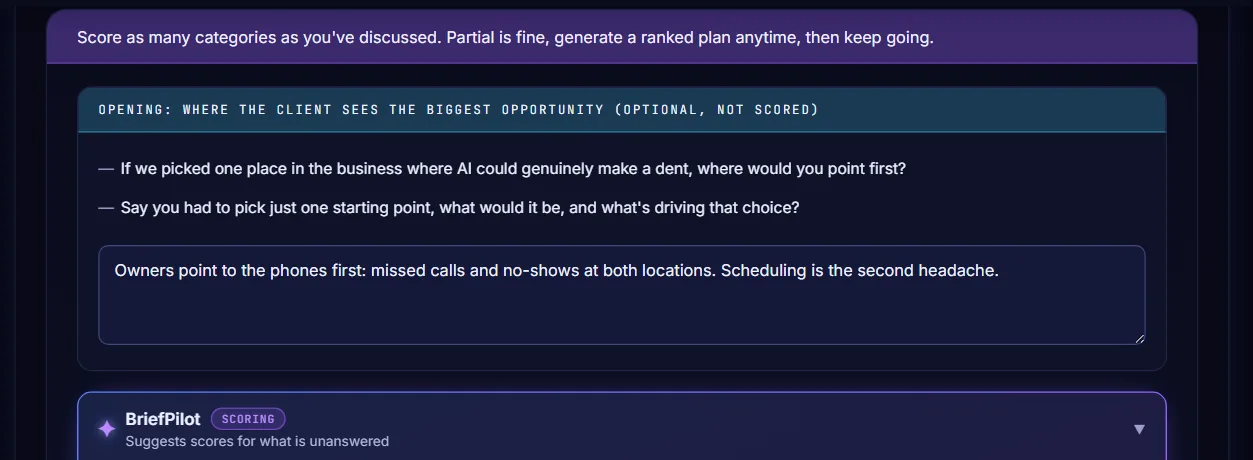
Choose Implementation Scope in the sidebar. Ask the two opening questions and type what the client says in the notes box. This part is optional and is not scored.
-
Open a tier and pick a business area
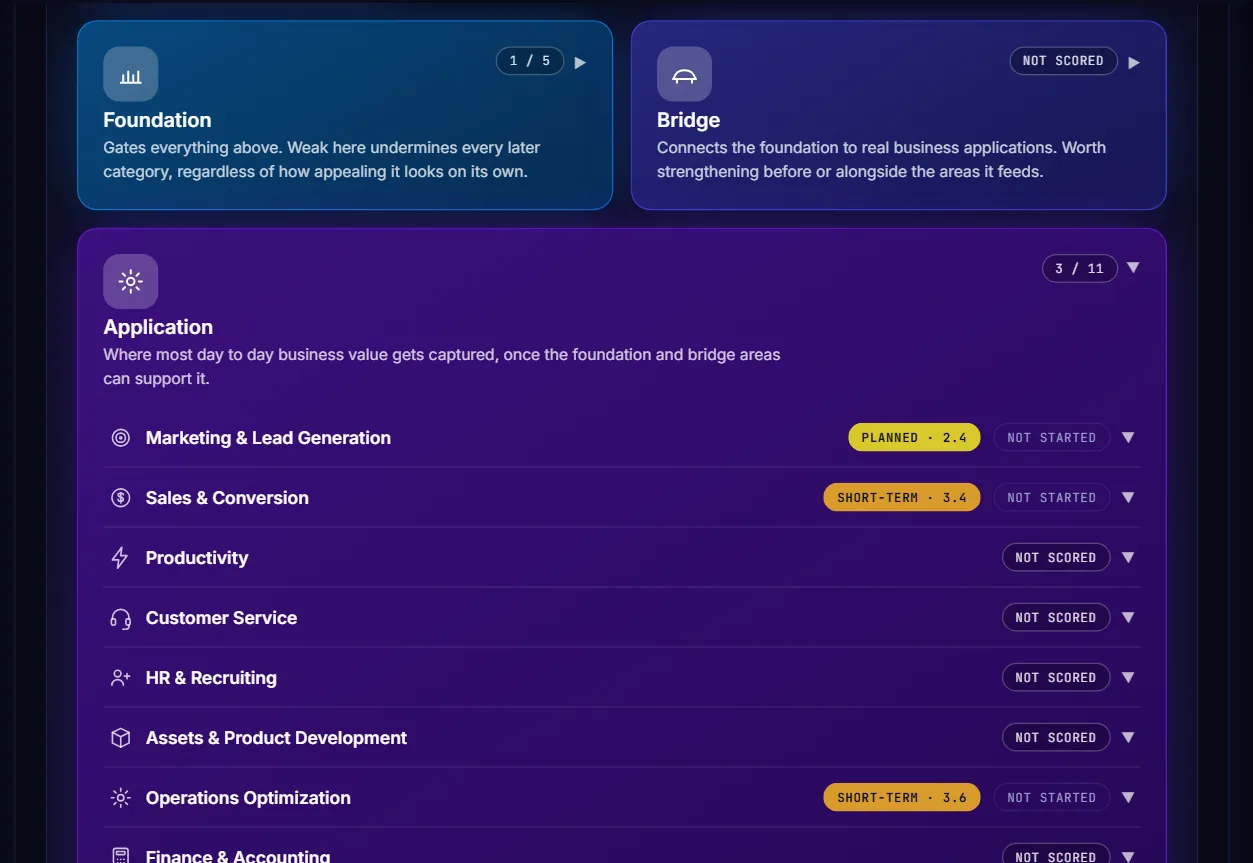
The 22 business areas are grouped into four tiers: Foundation, Bridge, Application and Advanced. Press a tier to see its areas, then press an area to open it. You only need to score the areas you actually discussed.
-
Score the area
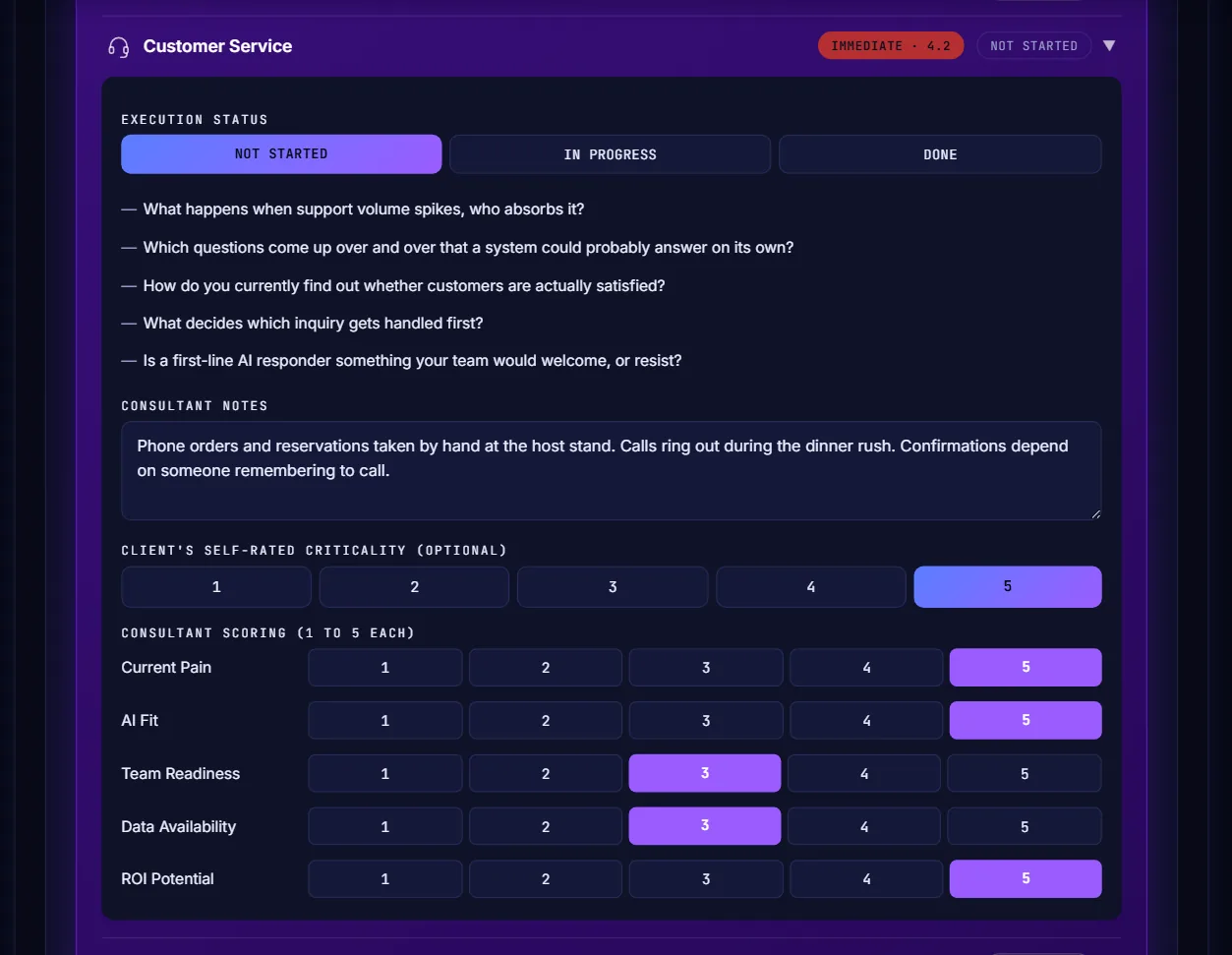
Use the listed questions to guide the conversation and type your Consultant Notes. Then pick 1 to 5 for Current Pain, AI Fit, Team Readiness, Data Availability and ROI Potential. The client's self-rated criticality is optional. The badge beside the name shows the priority once all five are scored.
-
Generate the scope
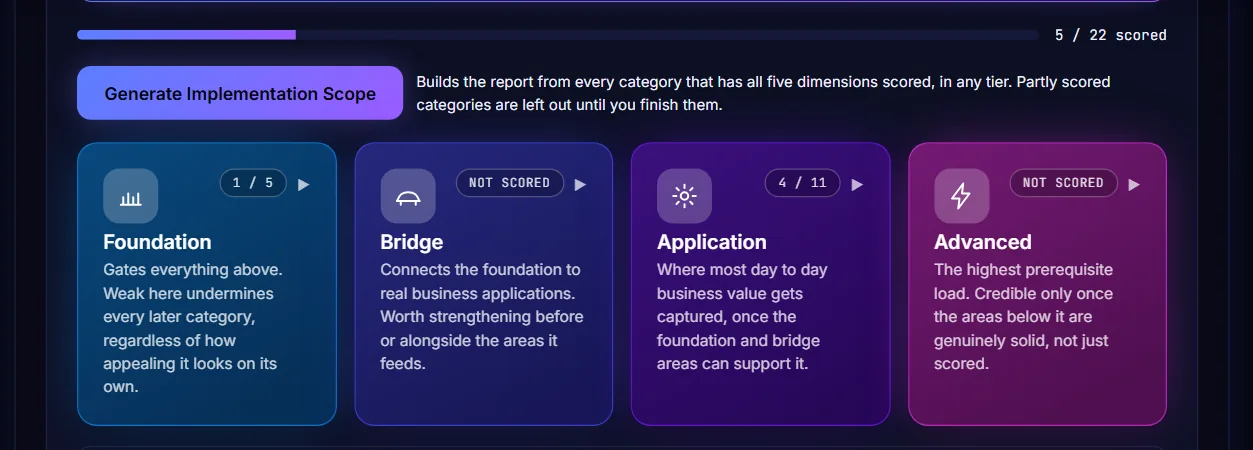
The bar shows how many of the 22 areas are scored. Press Generate Implementation Scope. An area counts only when all five dimensions are scored, and you can generate again any time as you score more.
-
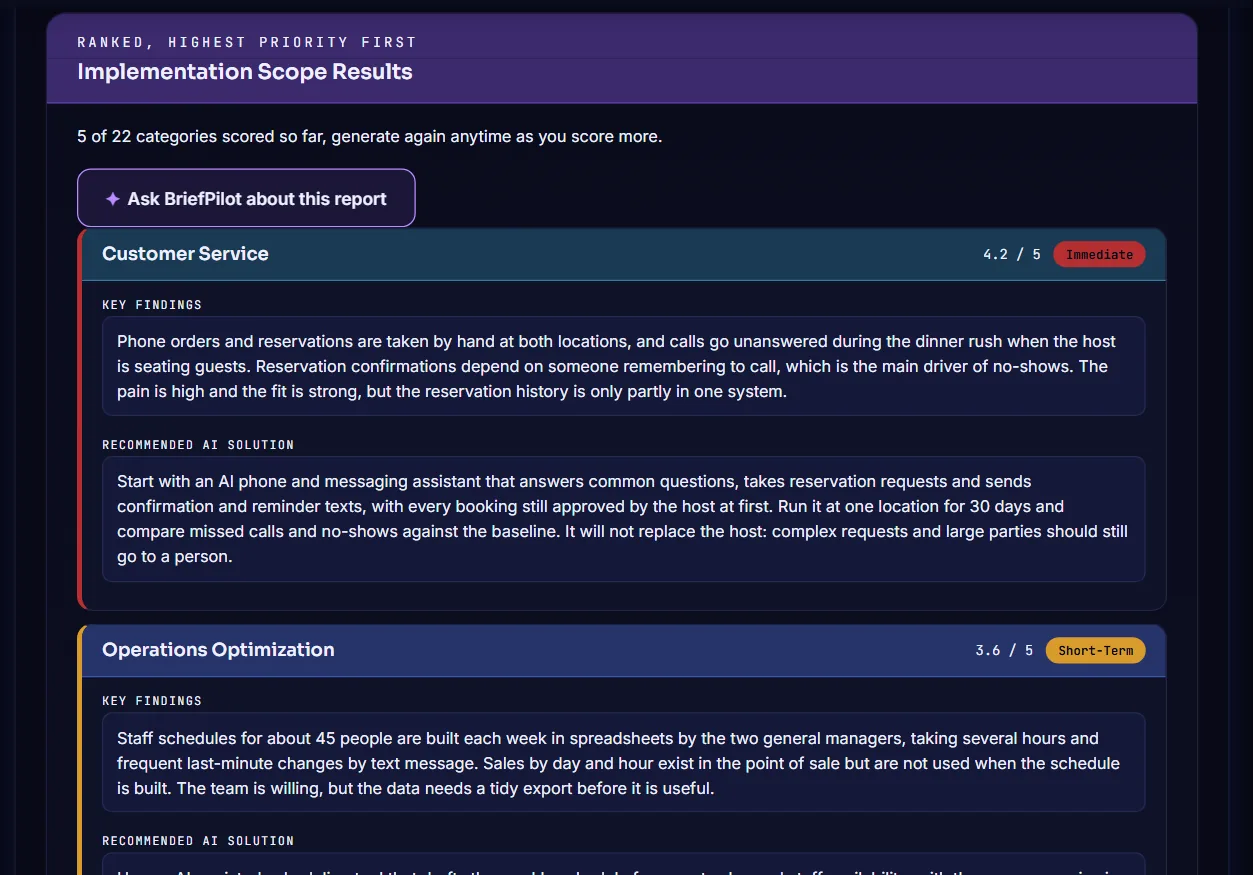
Read the ranked results
Implementation Scope Results lists the areas with the highest priority first. Each one shows its score out of 5, a priority label such as Immediate or Short-Term, the Key Findings and a Recommended AI Solution. You can edit any of the text.
-
Check your consultant notes
Under the results, Consultant Notes holds a drafted summary for your own preparation. Edit it as you like. It is internal and is not written for the client.
