The suite
Choose your session folder
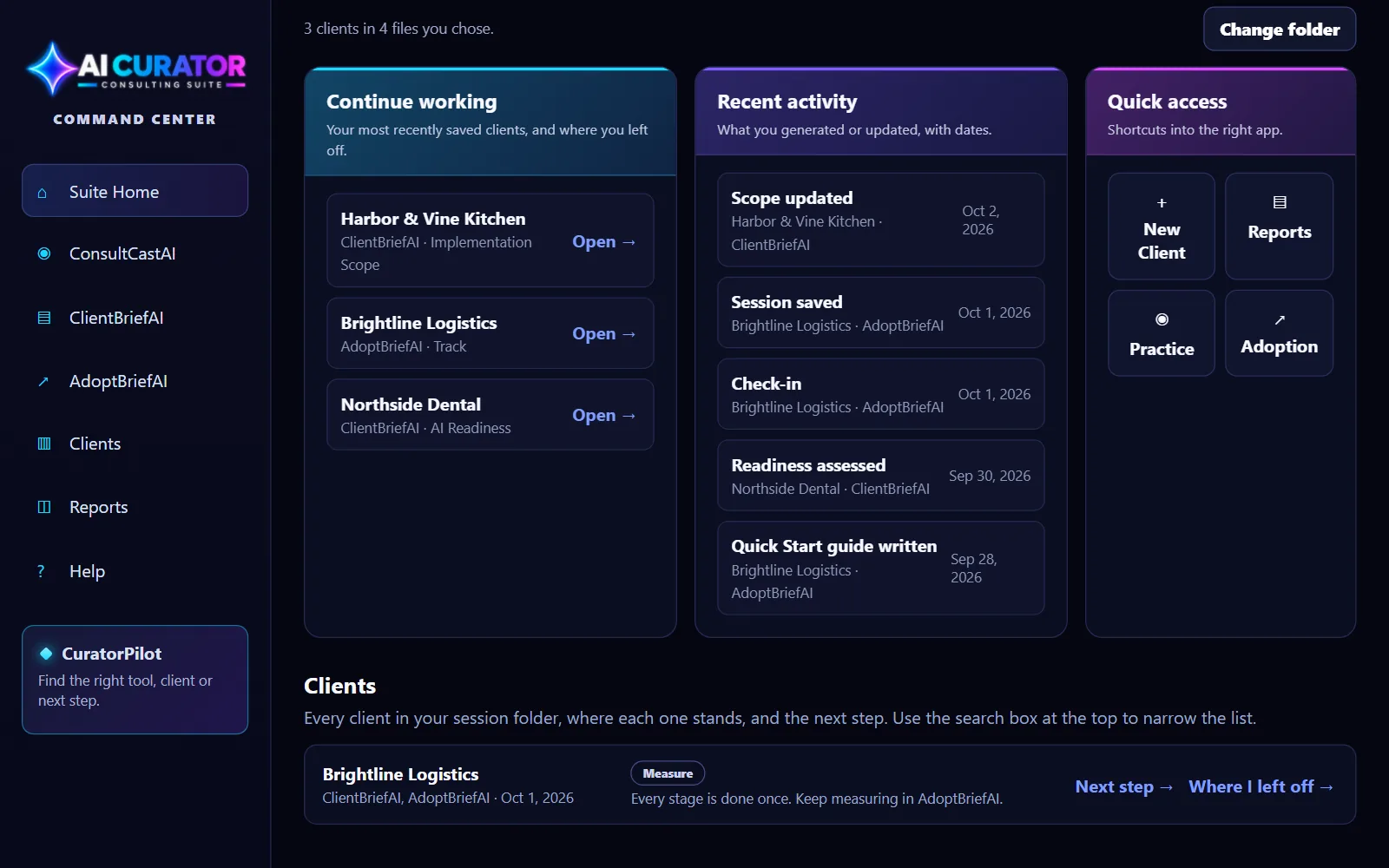
ClientBriefAI and AdoptBriefAI save each client's work as a session file on your own computer. Point the suite at the folder where you keep those files and it shows every client, where they stand, and the next step. The files are read in your browser only. Nothing in them is sent to our server.
-
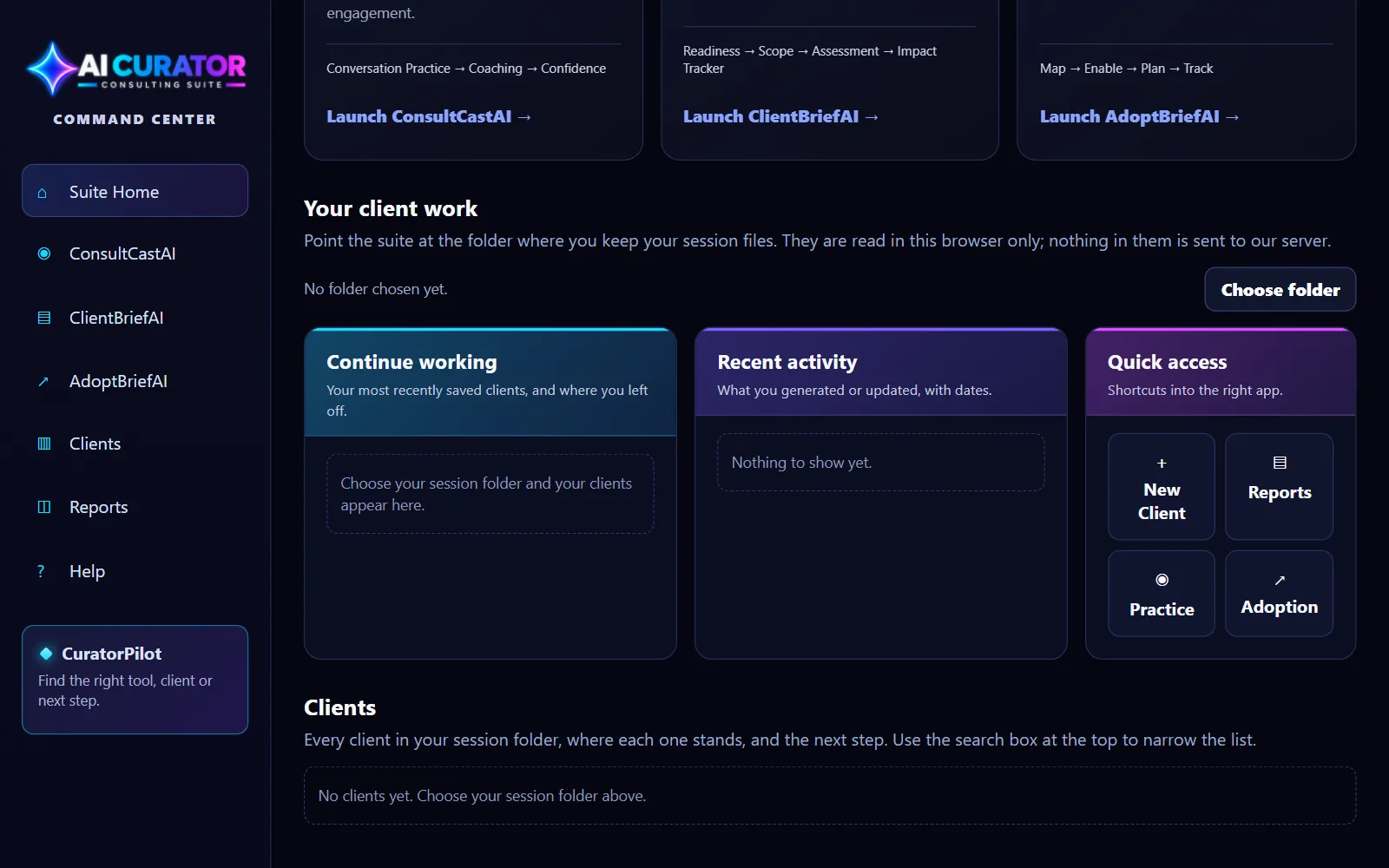
Click Choose folder
Scroll to Your client work and click Choose folder. Pick the folder where you save your session files, and tell your browser it may read it when it asks.
-
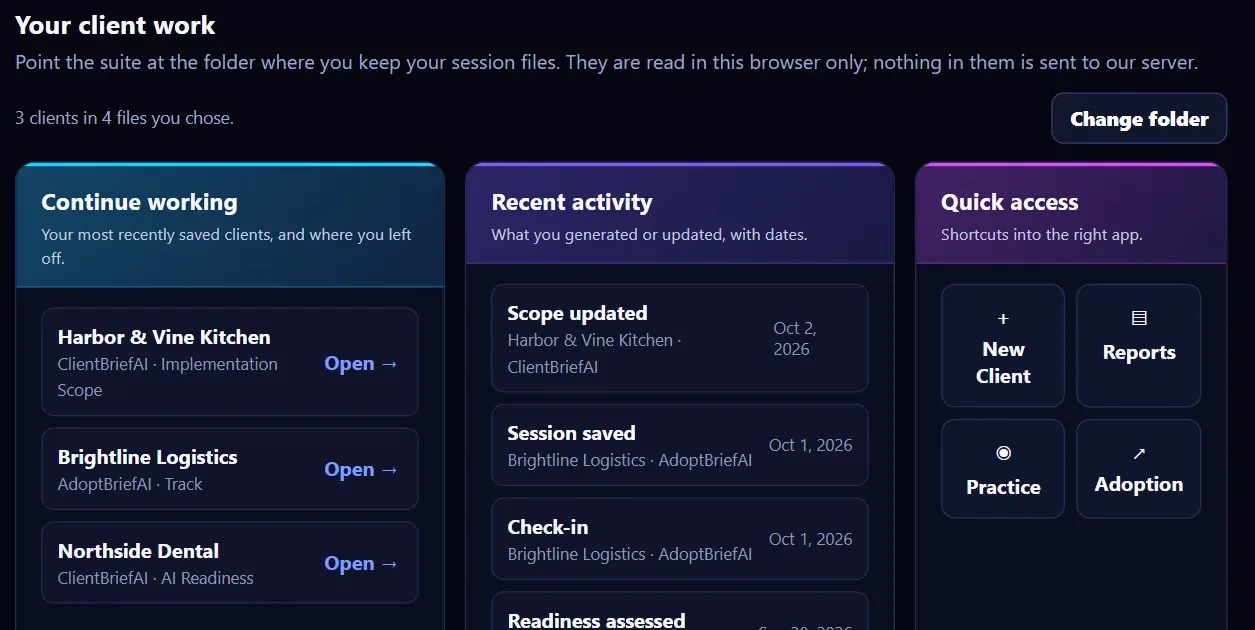
Pick up where you left off
Continue working lists your most recently saved clients. Click Open next to a client to open it in the right app with its file already loaded. Recent activity shows what you generated or updated, with dates.
-
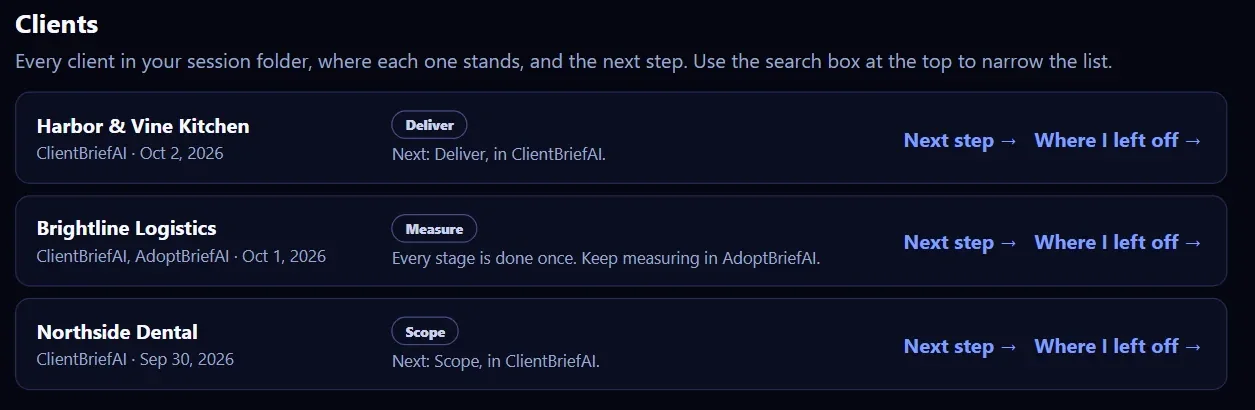
See every client and the next step
The Clients list shows each client, the stage they are at, and what comes next. Next step opens the app at the stage that is due. Where I left off opens the last file you saved for that client.
-
Search for a client
Type in the search box at the top of the page to narrow the lists to matching clients.