
ConsultCastAI
Read your debrief and save it
When you have finished the conversation, ending the session gives you a written review of how it went. You can read it on screen and save it as a text file.
-
Click End Session
Click End Session above the conversation. The debrief takes a few seconds to appear.

-
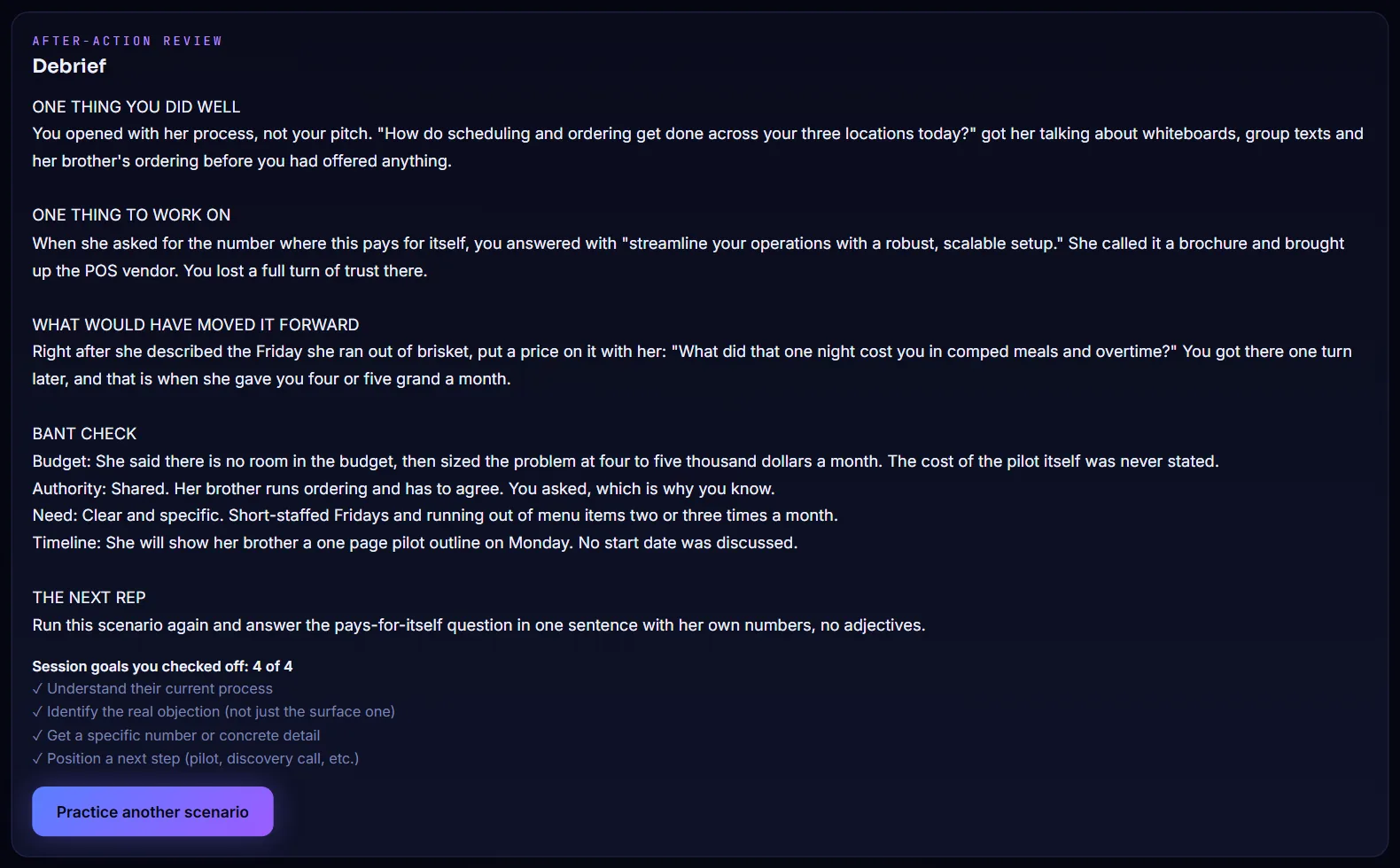
Read the debrief
The Debrief opens below the practice screen. It covers one thing you did well, one thing to work on, what would have moved the call forward, a BANT check (budget, authority, need and timeline) and one focus for your next practice.
-
Check your goals and go again
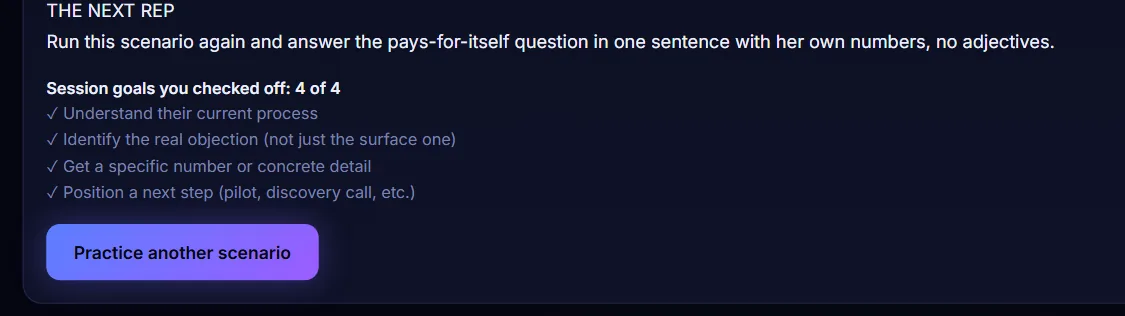
Under the review you see which session goals you ticked. Click Practice another scenario to clear the screen and set up a new session.
-
Download a copy
Every finished session is kept in Debrief History in your account menu. Click Download on a session to save its debrief as a text file you can keep or share.
