ConsultCastAI
Open ConsultCastAI and find your way around
ConsultCastAI is where you rehearse a client conversation with an AI persona before the real one. You open it from the Command Center, and you do not sign in a second time.
-
Launch it from the Command Center
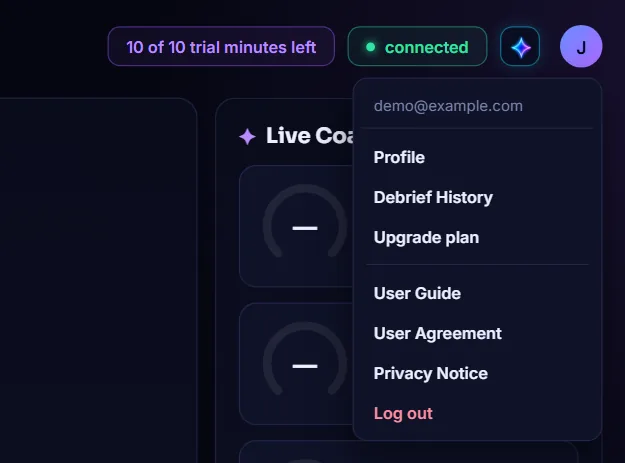
Sign in at the Command Center, then find the ConsultCastAI card under Your Consulting Suite and click Launch ConsultCastAI. There is no separate ConsultCastAI password. Your Command Center sign-in is the only one you need.
-
Arrive already signed in
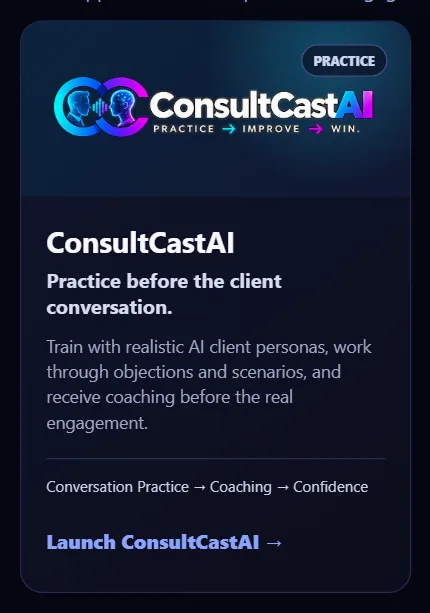
ConsultCastAI opens in a new tab on the practice screen. Setup is on the left, the conversation is in the middle, and Live Coaching is on the right.
-
Read the header
The top right shows your trial minutes, a connected badge, the AI Curator apps button and your account button. During a session a Live badge and a timer appear here too.

-
Switch to another app
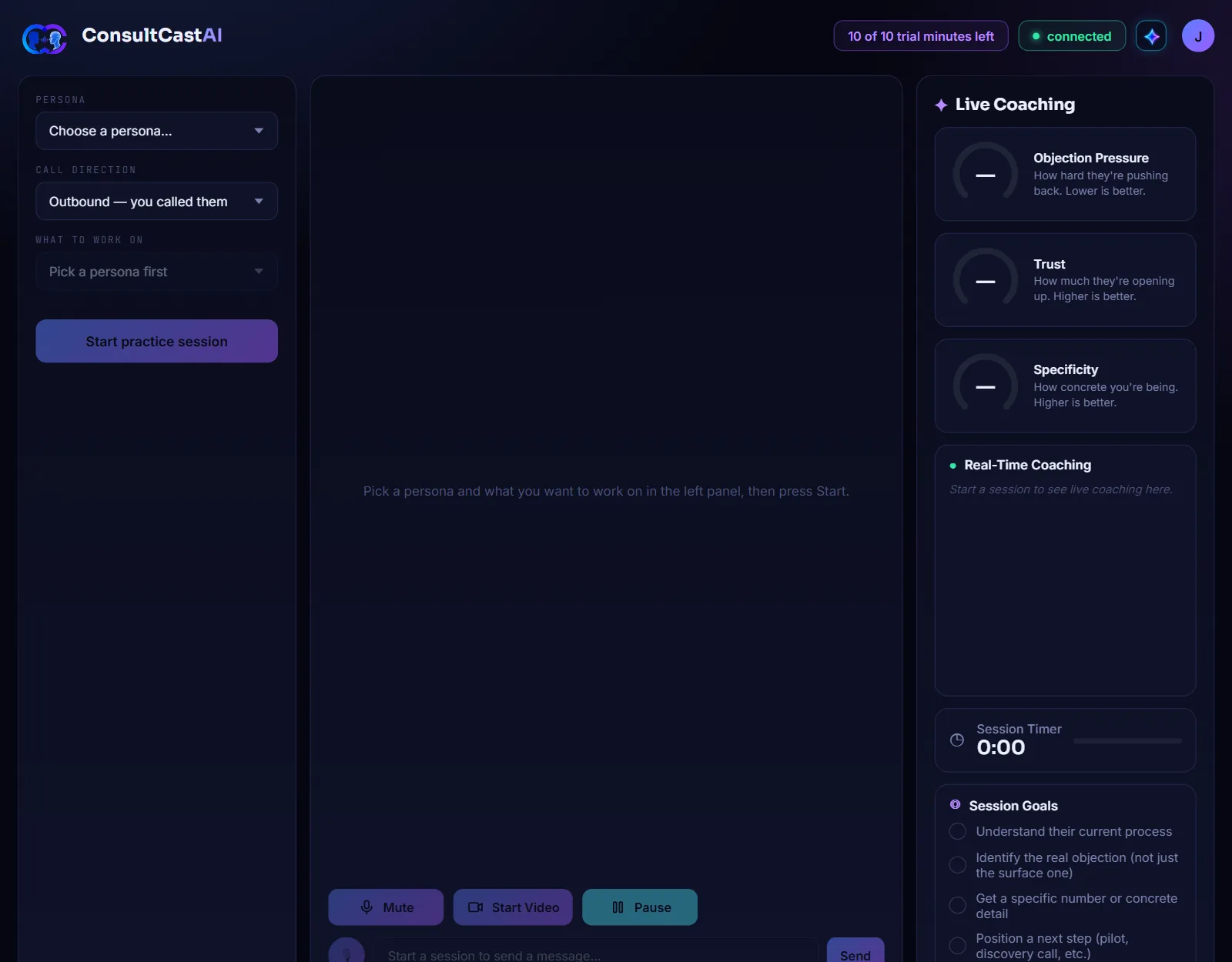
Click the AI Curator apps button to go back to the Command Center or to open ClientBriefAI or AdoptBriefAI. Each one opens in a new tab, so your practice session stays where it is.
-
Open your account menu
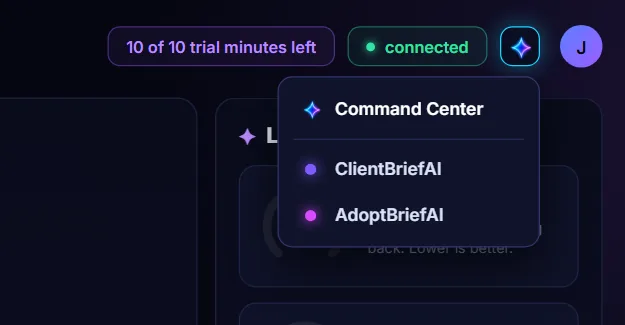
Click the round button with your initial. The menu holds Profile, Debrief History, Upgrade plan, the User Guide, the User Agreement, the Privacy Notice and Log out.