The suite
Find your way around the Command Center
The Command Center is the first page you see after signing in. It shows the consulting lifecycle, your apps, and where each client stands.
-
Start at the top
The top of the page shows the six stages of an engagement and which app covers each one: Practice, Diagnose, Scope, Deliver, Adopt and Measure. The search box, the language menu and your account menu sit above it.

-
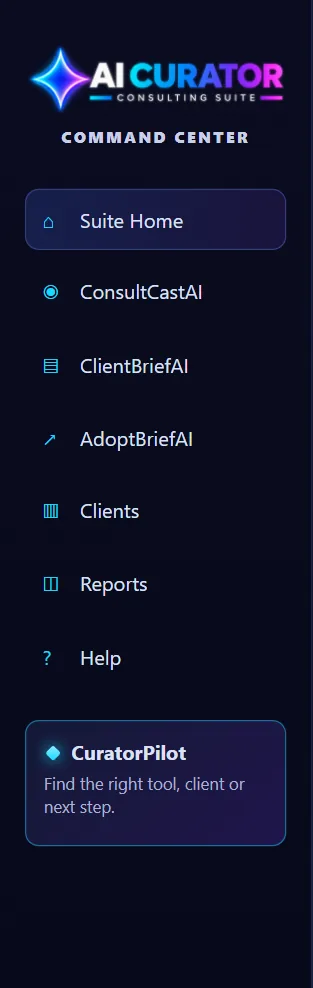
Use the sidebar
The sidebar on the left opens each app, jumps to your client list, and takes you to CuratorPilot. Suite Home brings you back to the top, and Help opens these guides.
-
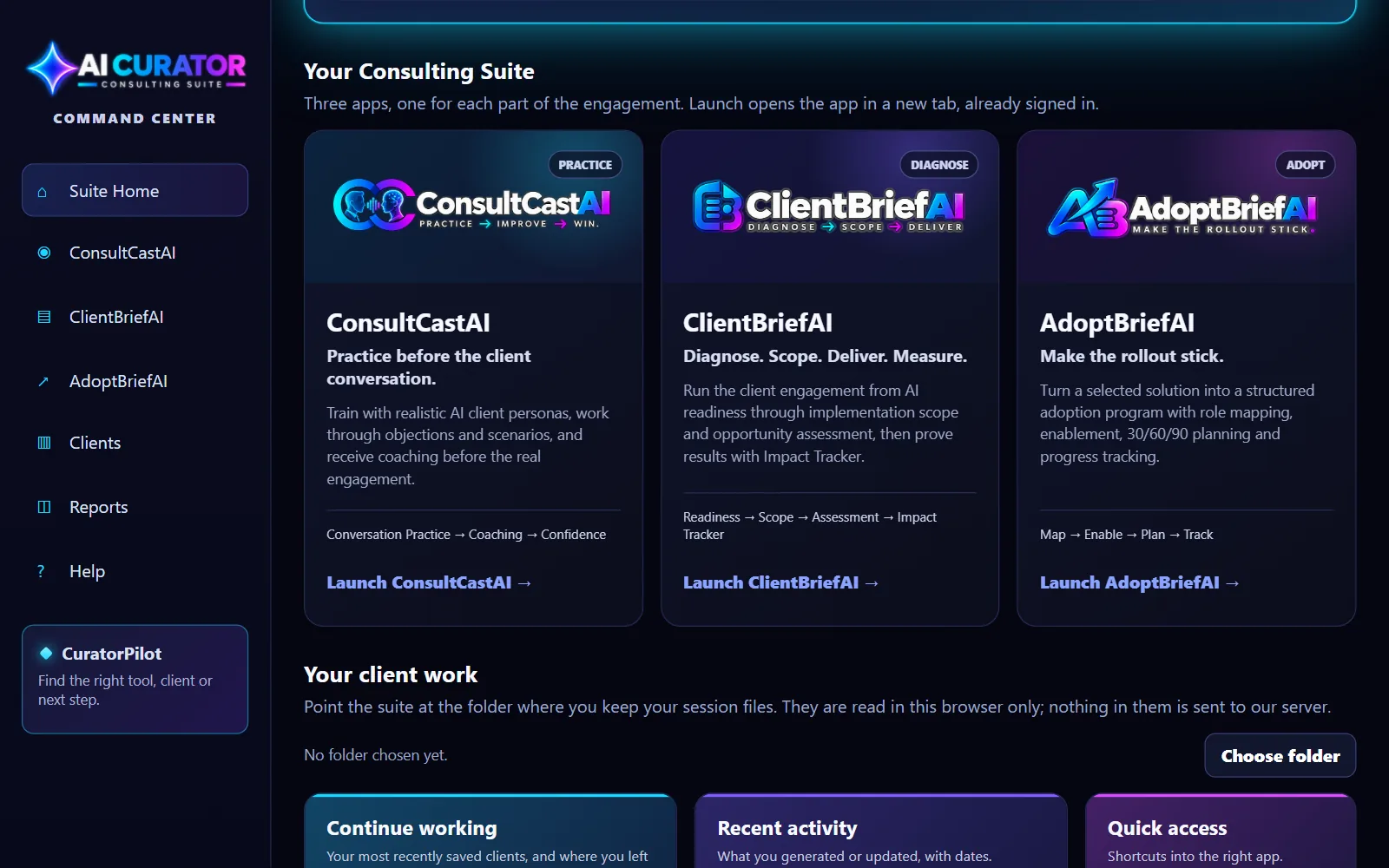
See your three apps
Scroll to Your Consulting Suite. Each card says what the app is for and has a Launch link.
-
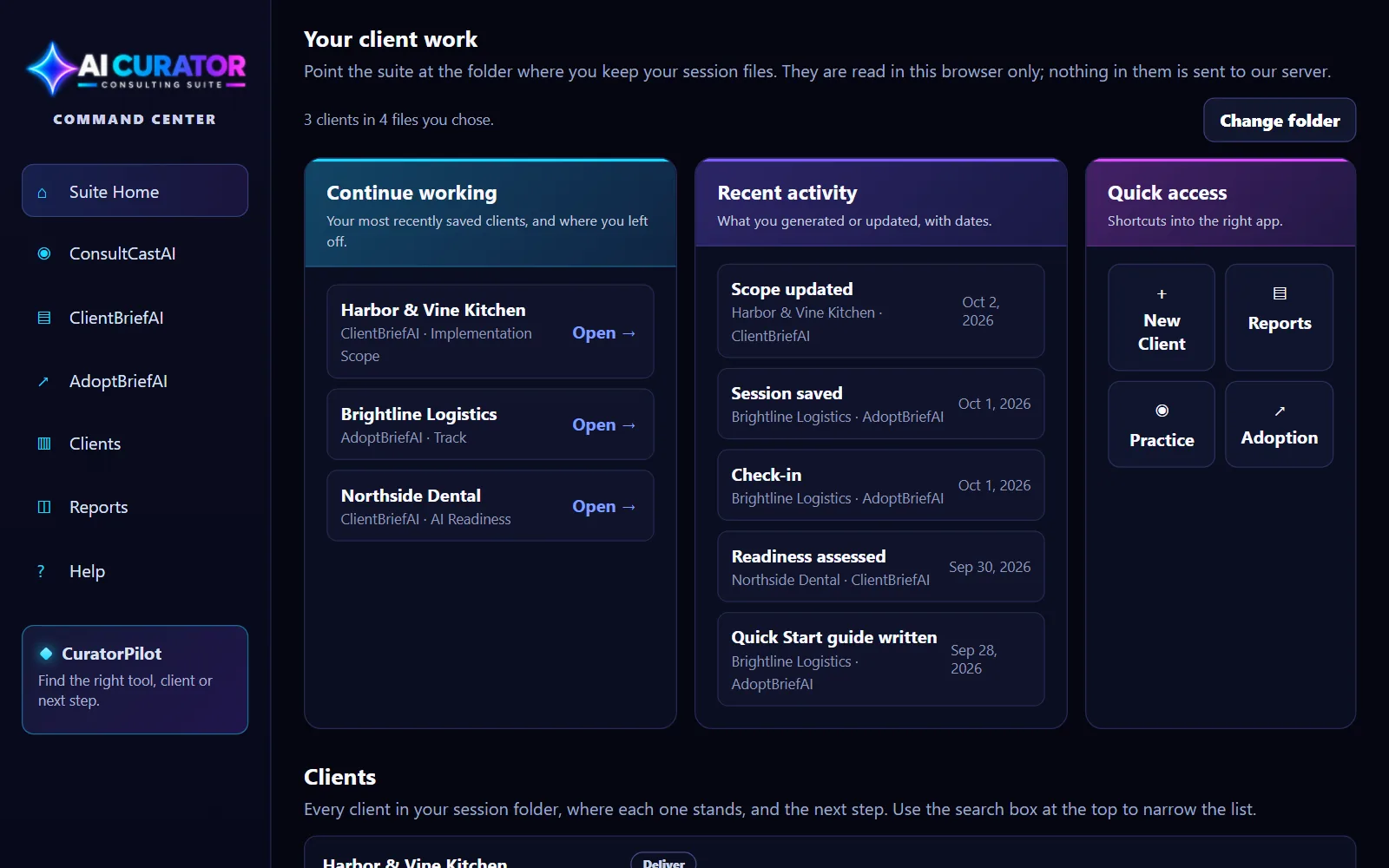
See your client work
Under Your client work you find the clients you saved most recently, what changed lately, and shortcuts into the apps. This part fills in once you choose your session folder.